
Installation: The Acumatica Report Designer is installed on a Windows machine with the Acumatica Server’s installer.
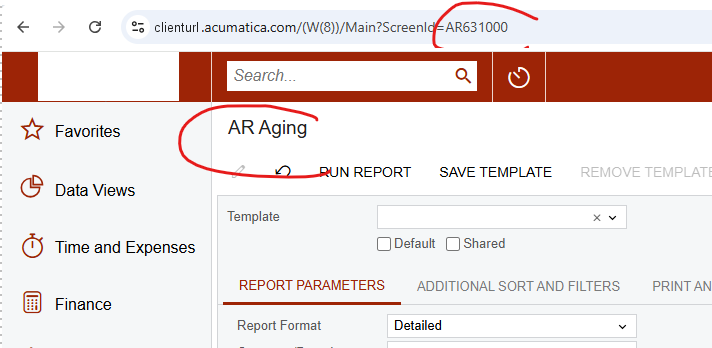
Example to open and edit an Acumatica report: AR Aging.
-
Open the Report Designer in Windows by finding and clicking on its icon.
-
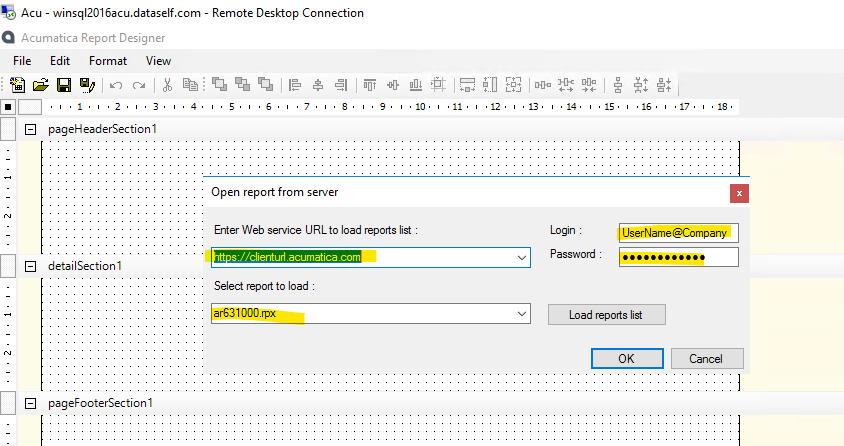
Click File → Open From Server
-
Web Service URL: Enter the plain Acumatica URL.
-
Login:
-
Single company: UserName
-
Multi-company: UserName@CompanyID
-
-
Enter the report code. It’s the code showing on the report’s URL plus ‘.rpx’.
-
Click Ok.
-
-
To view the data modeling (tables and joins): File → Build schema.
-
Note:
Viewer Fieldstab →Load used fieldswill list the report’s fields.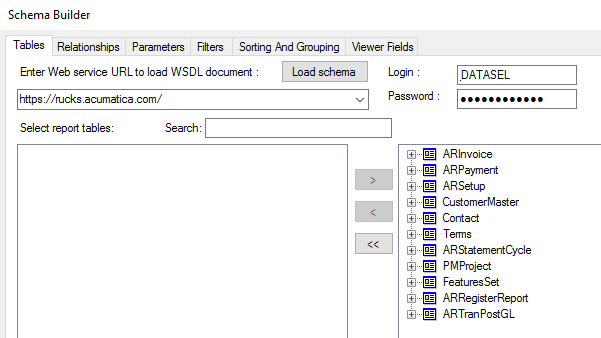
-
-
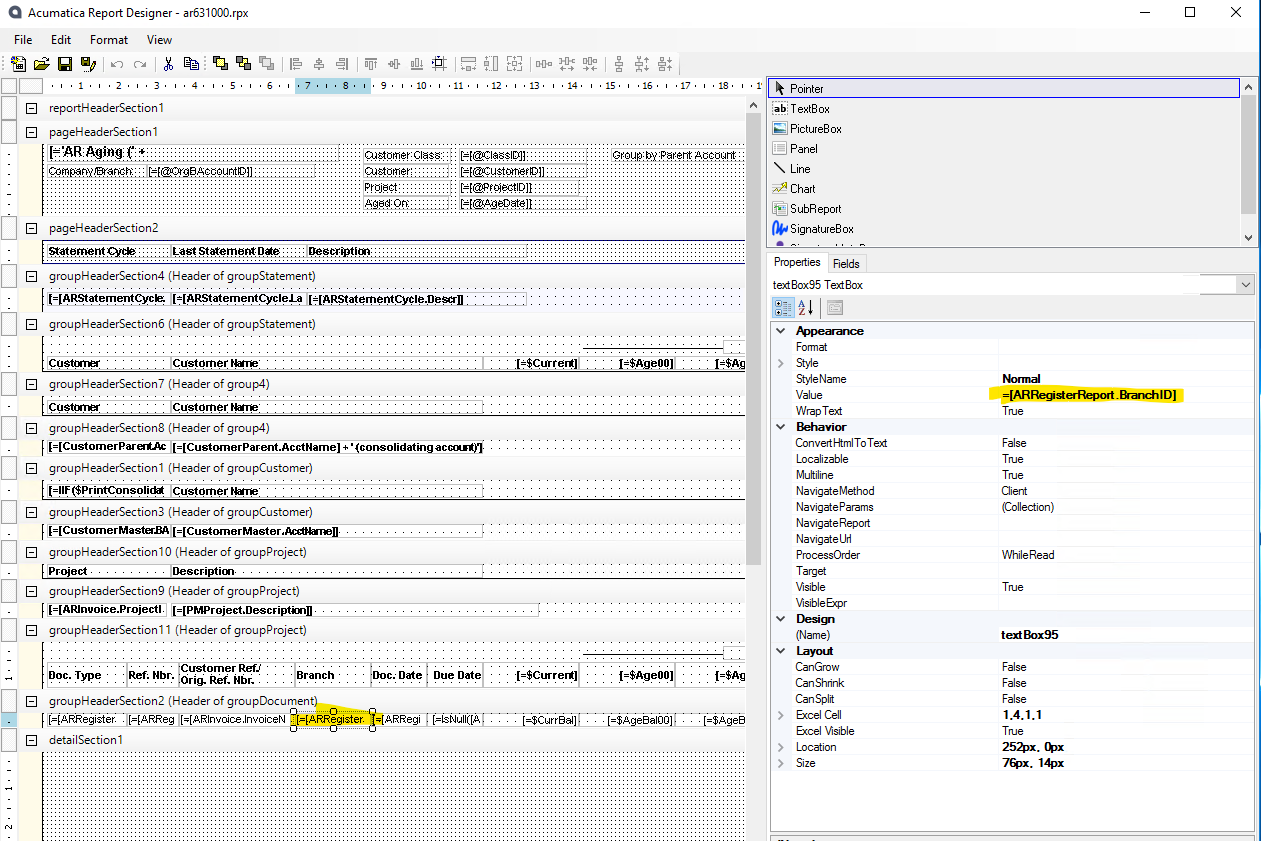
To view the content of a field, select it on the main panel and see details on the Properties panel on the right.
-
Some of the report logic might be easier to find via the files XML:
-
File → Save As → save it locally.
-
Open the saved file with a text editor (ex.: Notepad), and then search for the desired fields. Here are two examples:


-