
Estimated time to complete: 10 to 15 minutes.
This page describes the Tableau Cloud or Tableau Server settings so DataSelf ETL+ can refresh your Tableau data sources as part of your ETL processes, and publish data soruces and workbooks if necessary.
System requirements:
-
An active Tableau Cloud or Tableau Server license.
-
An user with site admin rights to your Tableau site.
-
DataSelf ETL+ user license
On the Client’s Tableau Cloud (or Tableau Server)
-
Log to your Tableau site with a site admin user.
-
Click on your
user account(the circle on the top right of your browser) →My Account Settings.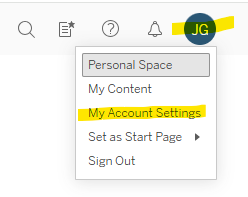
-
On the
Settingstab, type in a name to your PAT (such as dataselfapi) → clickCreate Token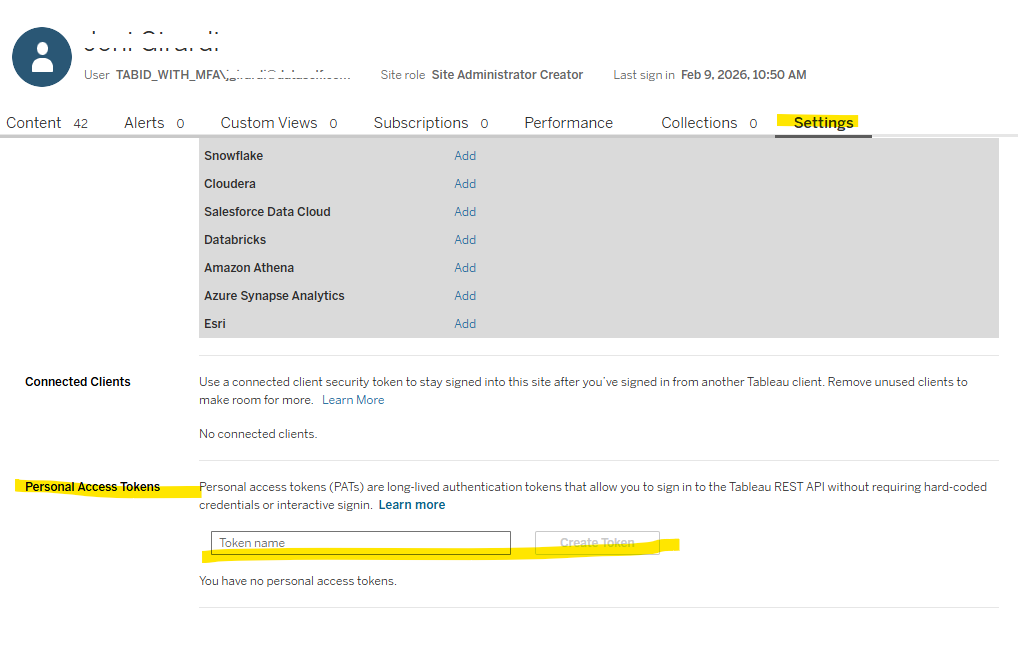
-
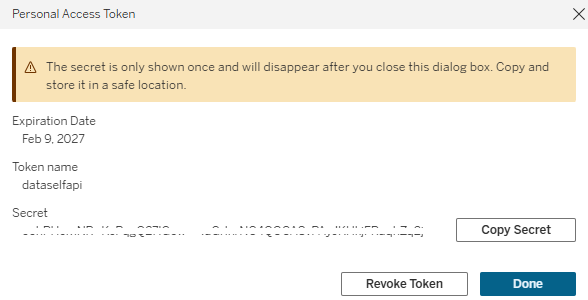
Copy the PAT Secret string, this is the only opportunity to copy this string. If you lose the secret key, you can create a new one (and delete the old one if it’s not being used).
On the Client’s ETL+ Web
-
Log to ETL+ Web (https://etl.dataself.com)
-
Go to the
ETLpage →External Objects:-
If you don’t have any Tableau data source configured in ETL+ yet, add at least one data source:
-
Click
+→Tableau Refresh, then fill out the parameters. E.g.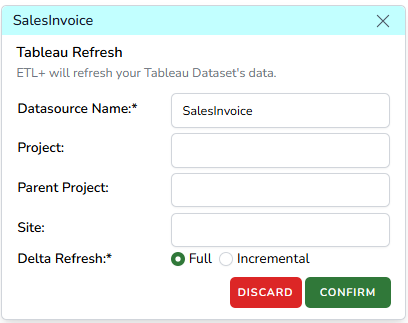
-
Confirm
-
-
Click the
wrenchicon by yourTableau Refreshblue header → selectCustom→ and then fill out the form.-
Tableau Cloud will only work with the
Auth Type = PAToption. Paste the PAT secret from the prior section. -
You can select
Auth Type = Userwhen working with Tableau Server (not Tableau Cloud).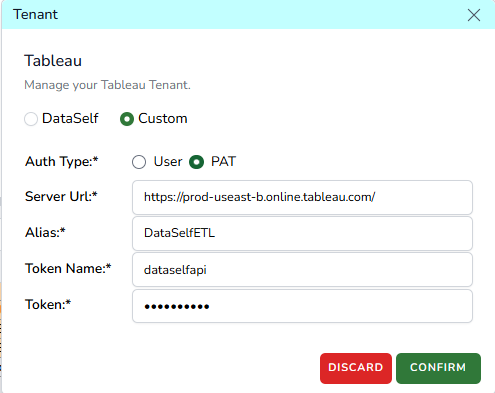
-
-
Confirm→Save.
-
Ongoing ETL+ and Tableau Integration
-
You should now be all set to refresh your Tableau data sources via ETL+.
-
If applicable, you can now add more Tableau data sources to your ETL+ by clicking
External Objects→+→Tableau Refresh, fill out the form,Confirm→Save. -
You can refresh your Tableau data sources in two main ways via ETL+:
-
On demand: On the
ETLpage →External Objects→Tableau Refreshsection, click theRun Scripticon (play icon) by the data source name. -
On demand and/or via schedule, individually or in groups: Add your Tableau data sources into ETL+ Jobs to run manually or on schedule:
-
On the
ETLpage → then click the wrench icon on theETL+ Jobheader. -
On the Job tab on the right, assuming you already have Jobs created, click the
Job Stepsicon of a Job. -
On the right panel shows the Job Steps, click the
Show Uncheckedicon (crossed eye icon) to view all hidden steps, scroll down to find your Tableau data sources, check the checkbox for the desired ones. -
If you need to run the Tableau data sourcesbefore or after other Job Steps, drag the models up and down as needed.
-
Confirm→Save.
-
-
-
You may now run this Job that includes Tableau data sources manually of via Schedule.