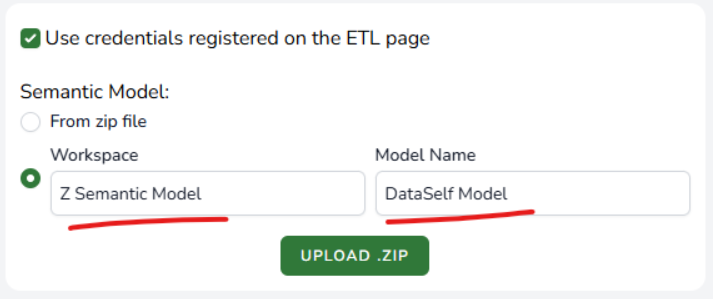
Use ETL+ Web → Utility → Power BI → Bulk Publishing to quickly publish Power BI semantic models and workbooks to your Power BI Service (tenant).
Set Up
Create a zip file with one of your models and its workbooks to publish. Here’s the zip file structure:
-
Root directory: blank
-
Subfolder level 1: Datasources
-
Subfolder level 2: Workspace to host one semantic model
-
Subfolder level 3: One semantic model (pbix) to be published into the workspace matching the name of the parent folder (level 2).
-
-
-
Subfolder level 1: Workbooks
-
Subfolder level 2: Workspace(s) to host workbooks
-
Subfolder level 3: One to unlimited workbooks to be published into the workspace matching the names of the parent folders (level 2).
-
-
-
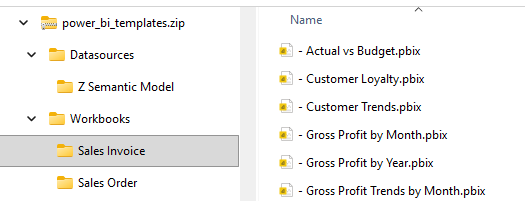
Example: The power_bi_templates.zip with its two subfolders at the root. The image is showing workbooks to be published from Workbooks\Sales Invoice subfolder.
Notes:
-
The zip file contains two folders in the root directory (Datasources and Workbooks). The second level subfolders are the names of the workspaces (under Workbooks, you find Sales Invoice and Sales Order). The third level are the files.
-
Supported models must be in .pbix format. Workbooks are supported in .pbix and .xlxs formats.
Semantic Models
-
Each Datasources can only have one model in the zip file. Use multiple zip files to upload workbooks mapped to multiple models.
-
The API takes the workbooks from the zip file, switches their internal mappings to the model inside of the Datasource folder, and then publishes the workbooks into their respective Workspaces.
-
For instance, the workbooks from zip sample above are all mapped to a model called GalaxySchema (the model is inside of the Z Semantic Model zip folder). Upon publishing, all of these workbooks in the tenant will point to the GalaxySchema inside of the Z Semantic Model workspace.
-
-
If your model has already been published, use the API UI to identify the model (you can leave the zip file without the Datasources folder).