
Power BI Modeling MCP — Local Setup Guide
How to install the local MCP server and connect it to Claude Desktop via VS Code
|
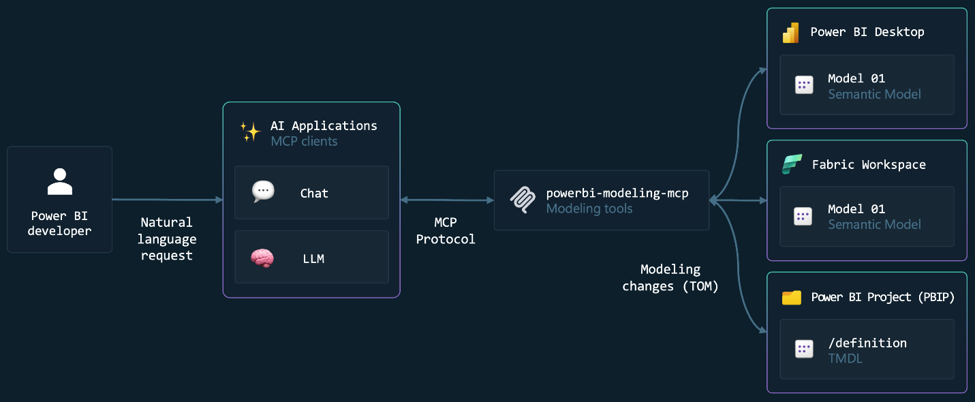
The Power BI Modeling MCP Server is a local server published by Microsoft that lets AI tools like Claude interact directly with your Power BI semantic models. Unlike the remote server, this one runs on your machine and connects to an open Power BI Desktop file, giving Claude the ability to read and modify your data model using natural language.
What you can do once connected:
-
Create and edit measures, tables, columns, and relationships
-
Rename or reorganize model objects in bulk
-
Ask questions about your model structure and DAX logic
-
Connect to Power BI Desktop, Fabric workspace, or PBIP project files
This is a local setup — the MCP server runs as an executable on your Windows machine and communicates with Claude Desktop over stdio. Power BI Desktop must be open with your file loaded before starting a session.
Step 1 — Download and Install VS Code
Go to code.visualstudio.com and download the Windows installer. Run the installer and keep the default options.
-
During installation, check the box Add to PATH — this makes VS Code accessible from the terminal
-
After installation, launch VS Code to confirm it opens correctlyIf you already have VS Code installed, skip this step. Make sure your version is up to date — the Power BI MCP extension requires a recent release. Go to Help → Check for Updates to verify.
Step 2 — Install the Power BI Modeling MCP Extension
The MCP server is distributed as a VS Code extension. Installing it places the server executable on your machine automatically — no manual download or configuration in VS Code is required.
Open the Extensions marketplace
In VS Code, click the Extensions icon in the left sidebar (or press Ctrl + Shift + X). In the search box, type:
|
Power BI Modeling MCP |
Install the extension
Find the extension published by Microsoft (publisher ID: analysis-services.powerbi-modeling-mcp) and click Install. You can also open it directly via:
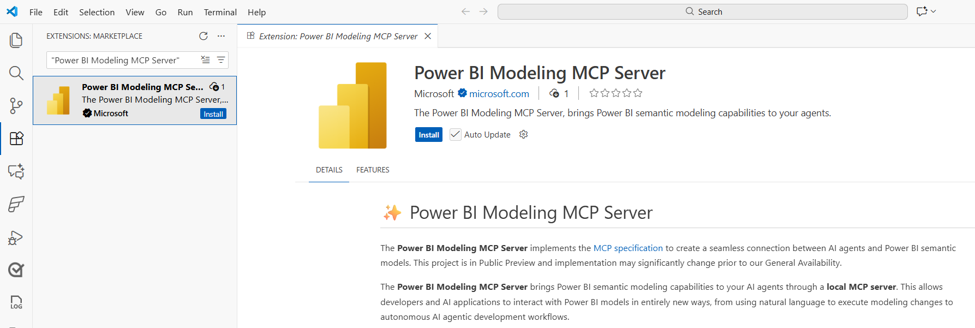
Once installed, the extension places the powerbi-modeling-mcp.exe server executable inside your VS Code extensions folder. You will not see a visible panel or window — the server runs silently in the background when called by an MCP client.
Step 3 — Install Git (If Not Already Installed)
Git is required by VS Code for certain extension features and may already be present on your machine. If VS Code shows a warning about Git not being found, install it before continuing.
Check if Git is installed
Open a terminal in VS Code (Ctrl + `) and run:
|
git --version |
If you see a version number like git version 2.x.x, Git is already installed — skip the rest of this step.
Install Git
If Git is not found, go to git-scm.com/download/win and download the Windows installer. Run it with the default settings.
-
On the Adjusting PATH environment screen, select Git from the command line and also from 3rd-party software
-
Keep all other settings as default
-
After installation, restart VS Code and run git --version again to confirm
Step 4 — Ask Claude to Find and Configure the MCP Server
Instead of manually hunting for the executable path and editing config files, you can ask Claude Desktop to do it for you. Claude can locate the installed extension, find the correct executable, and write the configuration automatically.
Open Claude Desktop
Make sure you have Claude Desktop installed and open. If not, download it at http://claude.ai/download .
Send the following prompt to Claude
Copy and paste this message into a new Claude Desktop chat:
|
I just installed the Power BI Modeling MCP extension in VS Code. The extension places a file called powerbi-modeling-mcp.exe somewhere inside my VS Code extensions folder. Please search my computer for that file, find the correct path, and add it to my Claude Desktop configuration file at %APPDATA%\Claude\claude_desktop_config.json under mcpServers. The entry should look like this: { "powerbi-modeling-mcp": { "type": "stdio", "command": "<path to exe>", "args": ["--start"] } }. Please show me the config before saving it so I can confirm. |
Claude will search your VS Code extensions folder, find the path, and propose the configuration for your approval. Confirm and Claude will write the file.
The exe is typically found at: C:\Users\<YourName>\.vscode\extensions\analysis-services.powerbi-modeling-mcp-<version>-win32-x64\server\powerbi-modeling-mcp.exe — but the version number changes with updates, which is why asking Claude to find it is more reliable than hardcoding it.
What the config entry looks like
For reference, the final entry in claude_desktop_config.json will look like this:
|
{ "mcpServers": { "powerbi-modeling-mcp": { "type": "stdio", "command": "C:\\Users\\YourName\\.vscode\\extensions\\analysis-services.powerbi-modeling-mcp-0.x.x-win32-x64\\server\\powerbi-modeling-mcp.exe", "args": ["--start"] } } } |
Use double backslashes \\ in JSON paths on Windows. If the file already has other mcpServers entries, Claude will merge the new entry without removing the others.
Step 5 — Restart Claude Desktop
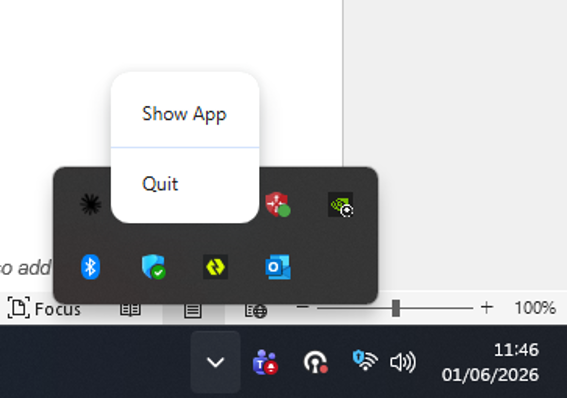
Configuration changes only take effect after a full restart. Closing the window alone is not enough — Claude Desktop must be fully quit and relaunched.
On Windows, right-click the Claude icon in the system tray (bottom-right of your taskbar) and select Quit. Then reopen Claude Desktop from the Start menu or desktop shortcut.
|
Step 6 — Open a Power BI File and Start Asking Questions
The local MCP server connects to whatever Power BI Desktop file is currently open on your machine. Before starting a session in Claude, make sure your .pbix or .pbip file is open in Power BI Desktop.
Connect Claude to your semantic model
In a new Claude Desktop chat, tell Claude which file to connect to:
|
Please connect to my Power BI semantic model. The file is open in Power BI Desktop. |
Claude will use the MCP server to detect the open file and establish a connection. It may ask for confirmation before making any changes.
Example questions and tasks
Once connected, you can ask Claude to explore or modify your model:
-
"What measures are defined in this model?"
-
"List all tables and their relationships"
-
"Create a measure for Year-over-Year sales growth"
-
"Add a description to every measure that is missing one"
-
"Rename all measures that start with _ to remove the underscore"
-
"Explain what this DAX measure is calculating"
Start with read-only questions before asking Claude to make changes. You can also add --readonly to the args in your config to prevent any modifications until you are ready.
Troubleshooting
|
Issue |
Resolution |
|
Hammer icon not showing after restart |
Confirm Claude Desktop was fully quit (system tray → Quit), not just the window closed. Check that the path in claude_desktop_config.json uses double backslashes and points to a file that exists. |
|
Claude cannot find the .exe |
Open Windows Explorer and navigate to C:\Users\<YourName>\.vscode\extensions\ and look for a folder starting with analysis-services.powerbi-modeling-mcp. Copy the full path to the .exe inside the server subfolder. |
|
Extension not compatible with VS Code version |
Go to Help → Check for Updates in VS Code. The MCP extension requires a recent version. Update VS Code and reinstall the extension. |
|
Power BI Desktop not detected |
Make sure a .pbix or .pbip file is already open in Power BI Desktop before sending your message to Claude. The server connects to the active file. |
|
Claude asks for permission on every action |
Add --skipconfirmation to the args array in your config if you trust Claude's actions: "args": ["--start", "--skipconfirmation"]. Use with caution. |