
Intro
The Power BI remote MCP server is a Microsoft-hosted endpoint that allows Claude and other AI tools to query your Power BI semantic models using natural language. It generates and executes DAX queries in the background, respecting your existing permissions and security policies.
Traditional Power BI analytics often require users to manually navigate reports, build visualizations, write DAX calculations, or depend on analysts to answer business questions. MCP transforms this experience by allowing AI-powered assistants to understand business intent, access Power BI environments securely, and deliver conversational analytics experiences.
With MCP, AI agents can:
-
Query Power BI datasets and reports
-
Interpret KPIs and visualizations
-
Generate narrative summaries and insights
-
Explain trends and anomalies
-
Assist with DAX and data modeling
-
Automate reporting and monitoring workflows
-
Integrate Power BI with enterprise systems and external data sources
Power BI MCP — Setup Guide
This guide covers four steps:
-
Step 1 — Tenant admin enables the MCP setting in the Power BI Admin Portal
-
Step 2 — Find your Semantic Model ID in the Fabric URL
-
Step 3 — Add the Power BI MCP connector in Claude
-
Step 4 — Start querying your semantic models
This feature is currently in preview. The MCP server URL and tool definitions may change as Microsoft enhances the capability. Source: http://learn.microsoft.com/power-bi/developer/mcp
Step 1 — Enable the Tenant Setting (Admin)
This step must be performed by a Power BI Tenant Administrator. Regular users cannot proceed until this setting is active.
Access the Power BI Admin Portal
Sign in to app.powerbi.com with a Tenant Administrator account. Click the Settings gear icon in the top-right corner and select Admin portal.
|
Screenshot: Power BI → Settings gear → Admin portal |
Enable the setting
Locate the setting named "Users can use the Power BI Model Context Protocol server endpoint (preview)" and toggle it to Enabled. You can apply it to the entire organization or limit it to specific security groups.
-
Entire organization — all users in the tenant can connect
-
Specific security groups — recommended if you want to control access before a broad rollout
Click Apply to save the setting.
Changes to tenant settings can take up to 15 minutes to propagate across the organization.
Step 2 — Find Your Semantic Model ID
Every Power BI semantic model has a unique ID. You will need this ID to tell Claude which model to query. It is found directly in the browser URL when you open the model in the Fabric portal.
Open your semantic model in the Fabric portal
Go to http://app.fabric.microsoft.com or app.powerbi.com and navigate to the workspace that contains your semantic model. Click on the semantic model to open its detail page.
Copy the Semantic Model ID from the URL
Look at your browser's address bar. The URL will follow this format:
The Semantic Model ID is the GUID that appears after /datasets/ in the URL. It looks like this:
|
URL segment |
What it is |
|
/groups/{GUID} |
The Workspace ID — identifies which Power BI workspace the model lives in |
|
/datasets/{GUID} |
The Semantic Model ID — this is what you need to copy and share with Claude |
Copy just the GUID after /datasets/ — for example: 9f8e7d6c-5b4a-3210-fedc-ba9876543210. Save it somewhere accessible; you will paste it into Claude when starting a session.
Step 3 — Add the Power BI MCP Connector in Claude
The Power BI MCP server is already connected as a built-in integration in http://Claude.ai . You do not need to install anything — you just need to activate it.
Open Customize area
In http://Claude.ai , click on Customize on the left sidebar and click Connectors.
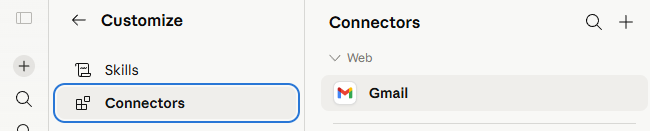
|
Click the  Add button Connectors
Fill in the fields:
Name: Power BI MCP
Remote MCP Server URL: https://api.fabric.microsoft.com/v1/mcp/powerbi
OAuth Client ID: your_user@mail.com (Power BI User)
OAuth Secret ID: your_password@mail.com (Power BI Password)
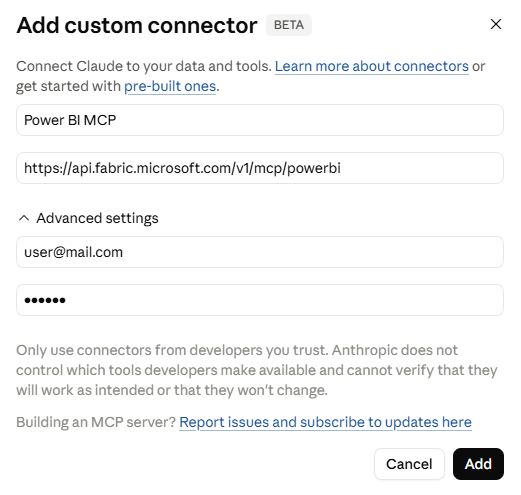
|
Enable All Actions
After connecting, open the connector settings and set permissions to Allow All Actions. This allows Claude to retrieve the model schema, generate DAX queries, and execute them against your semantic model.
Claude respects your Power BI permissions. It can only access models that your Microsoft account has at least Build access to. Row-level security (RLS) is enforced for user-authenticated sessions.
Step 4 — Start Querying Your Semantic Models
Open a new chat in Claude. To start a session, provide Claude with your Semantic Model ID (from Step 2) so it knows which model to query. You only need to share it once at the beginning of each conversation.
Start the conversation
Paste your Semantic Model ID in your first message, for example:
|
My Power BI Semantic Model ID is 9f8e7d6c-5b4a-3210-fedc-ba9876543210. What tables are available in this model? |
Claude will ask for permission to run the MCP tool. Click Allow. It will then retrieve the model schema and respond based on your data.
Example prompts
Once connected, you can ask questions like:
-
"Show me total sales by region for the last 12 months"
-
"What are the top 10 products by revenue this year?"
-
"Compare sales performance Q1 vs Q2 across all sales reps"
-
"What measures are available in this model?"
-
"Summarize the tables and relationships in this semantic model"
For best results, ask one focused question at a time. If you switch to a different semantic model during the same session, provide the new model ID before asking your next question.
Troubleshooting
|
Issue |
Resolution |
|
MCP connector not available |
Confirm that the tenant admin has enabled the setting in Step 1. Changes can take up to 15 minutes to propagate. |
|
Access denied / 403 error |
Verify that your Microsoft account has at least Build permissions on the semantic model in Power BI. |
|
Semantic model not found |
Double-check the model ID copied from the URL. Make sure you copied only the GUID after /datasets/ with no extra characters. |
|
Claude cannot find the model |
Share the Semantic Model ID explicitly at the start of your message. Claude does not retain it between sessions. |
|
Unexpected query results |
The model may not be optimized for AI. Ask your Power BI author to add AI descriptions and verified answers to the semantic model. |