
Intro
Traditionally, Tableau users rely on manually building dashboards, writing calculations, filtering views, or navigating reports to uncover insights. MCP introduces a new interaction model where AI agents can understand business context, access Tableau metadata and data securely, and assist users conversationally.
With MCP, AI tools can perform the following tasks with Tableau:
-
Query Tableau dashboards and data sources
-
Interpret KPIs and visualizations
-
Generate summaries and explanations
-
Automate repetitive analysis workflows
-
Provide contextual insights in natural language
-
Connect Tableau with other enterprise systems such as databases, CRMs, ERP systems, or cloud platforms
Tableau MCP — Setup Guide
This is a guide to create a Personal Access Token and connect Tableau to Claude Desktop via MCP. This guide covers:
-
Part 1: Creating a Personal Access Token (PAT) in Tableau
-
Part 2: Installing and configuring the Tableau MCP connector in Claude Desktop
Prerequisites:
-
A Tableau Server or Tableau Cloud account with API access
-
Claude Desktop installed — download at http://claude.ai/download
-
Explorer or higher permissions on your Tableau site
Part 1 — Creating a Personal Access Token in Tableau
A Personal Access Token (PAT) lets Claude authenticate to Tableau without a username and password. You create it once in your Tableau account and paste the values into Claude Desktop.
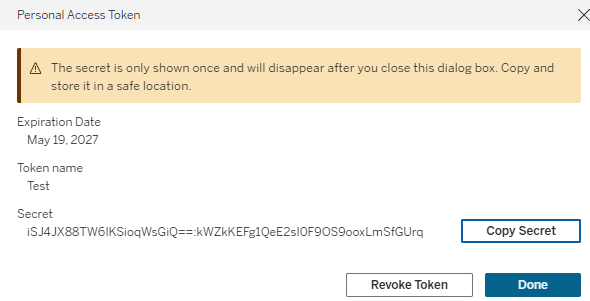
The token secret is shown only once. Copy it to a password manager before closing the dialog.
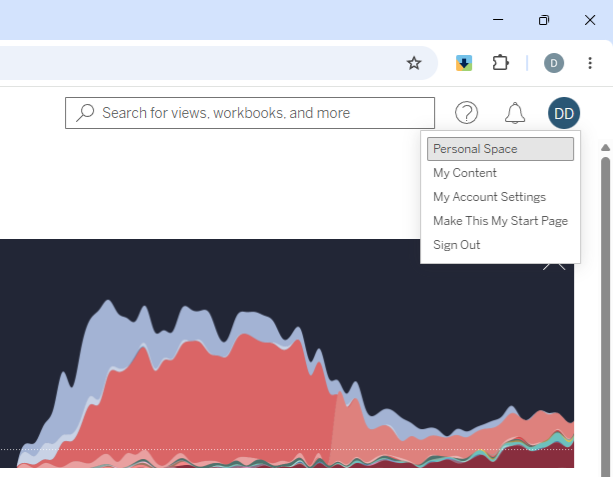
Step 1 — Open My Account Settings
Log in to Tableau Server or Tableau Cloud. Click your profile icon in the top-right corner and select My Account Settings.
|
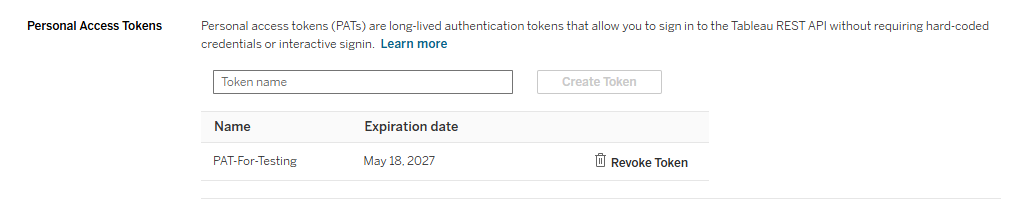
Step 2 — Go to Personal Access Tokens
On the Account Settings page, scroll down to the Personal Access Tokens section. You will see a Token Name text field and a Create Token button.
|
Step 3 — Name and create the token
Type a descriptive name in the Token Name field. Use something that identifies its purpose, for example claude-mcp. Click Create Token.
Step 4 — Copy the Token Name and Token Secret
A dialog will appear showing your new token. Copy both values:
-
Token Name — the name you entered (e.g. claude-mcp)
-
Token Secret — the long generated string
Click Copy Secret, then click Done. Store both values securely.
|
PATs expire after 15 consecutive days of inactivity, or after 1 year of regular use. When a token expires, return here to create a new one.
Part 2 — Adding the Tableau MCP Connector in Claude Desktop
The official Tableau MCP extension is maintained by Tableau (Salesforce) and available directly inside Claude Desktop. Method A below is the recommended approach.
Install from the Claude Marketplace (Recommended)
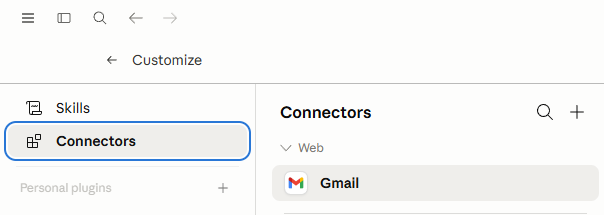
Step 5 — Open Customize in Claude Desktop
Launch Claude Desktop. Click the Customize button and then Connectors.
|
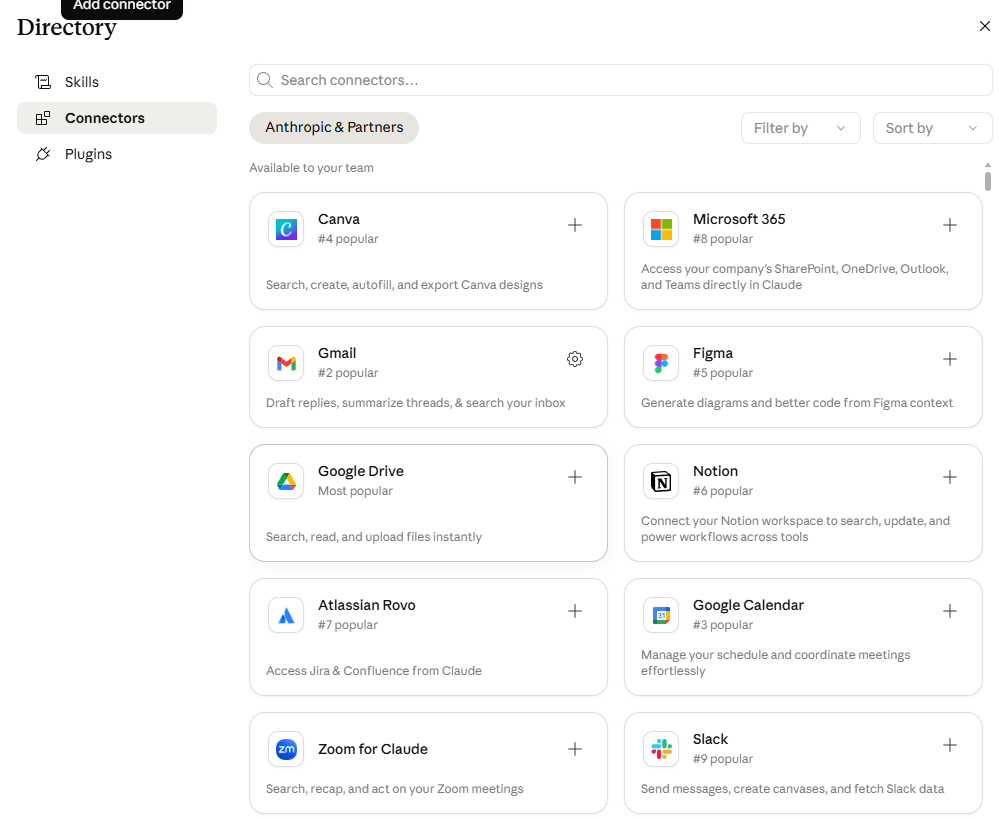
Step 6 — Open the + button and Browse Extensions
Click the + button. Then click Browse Extensions to open the marketplace.
|
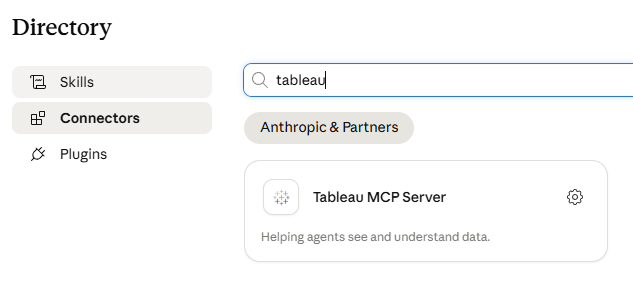
Step 7 — Search for Tableau and install
In the marketplace search box, type Tableau. Select the official Tableau MCP connector published by Tableau/Salesforce and click Install.
|
Step 8 — Enter your credentials
After installation, a configuration form appears. Fill in the four fields using the values saved in Part 1:
|
Field |
Value |
|
SERVER |
Your Tableau Server or Cloud URL |
|
SITE_NAME |
Your site name (leave blank for the default Server site) e.g. yoursite |
|
PAT_NAME |
The token name from Step 3 — e.g. claude-mcp |
|
PAT_VALUE |
The token secret copied in Step 4 |
Step 9 — Save and restart Claude Desktop
Click Save or Connect to confirm. Quit and relaunch Claude Desktop for the extension to take effect.
Part 3 — Verifying the Connection
Start a new chat in Claude Desktop and send the following message:
|
"List some of my Tableau data sources" |
Claude will ask for permission to run the list-datasources tool. Click Allow. If the connection is working, your published Tableau data sources will appear in the chat.
Once connected you can ask questions like: "What were sales by region last quarter?", "Why did close rate drop in Q3?", or "Summarize this data source." Claude will query your live Tableau environment to answer.
Troubleshooting
|
Issue |
Resolution |
|
Authentication error / 401 |
Check that PAT_NAME and PAT_VALUE are correct and match exactly. Tokens are case-sensitive. Create a new PAT if the current one expired. |
|
SSL certificate error |
For Tableau Server with self-signed certificates, set NODE_TLS_REJECT_UNAUTHORIZED=0 as a system environment variable. |
|
No data sources listed |
Confirm that VizQL Data Service and the Metadata API are enabled on Tableau Server. Verify your user has API Access on the data source. |
|
Extension not appearing |
Restart Claude Desktop after installation. Check Settings → Extensions to confirm the Tableau connector is active. |
|
PAT expired |
Return to Tableau → My Account Settings → Personal Access Tokens. Revoke the old token, create a new one, and update PAT_VALUE in Claude Desktop. |