
Click the User icon on the top right, select Admin Portal (if you are an Admin user). Open this page to manage who can enter your DataSelf Now environment, version control, DFT templates, and AI Usage settings.
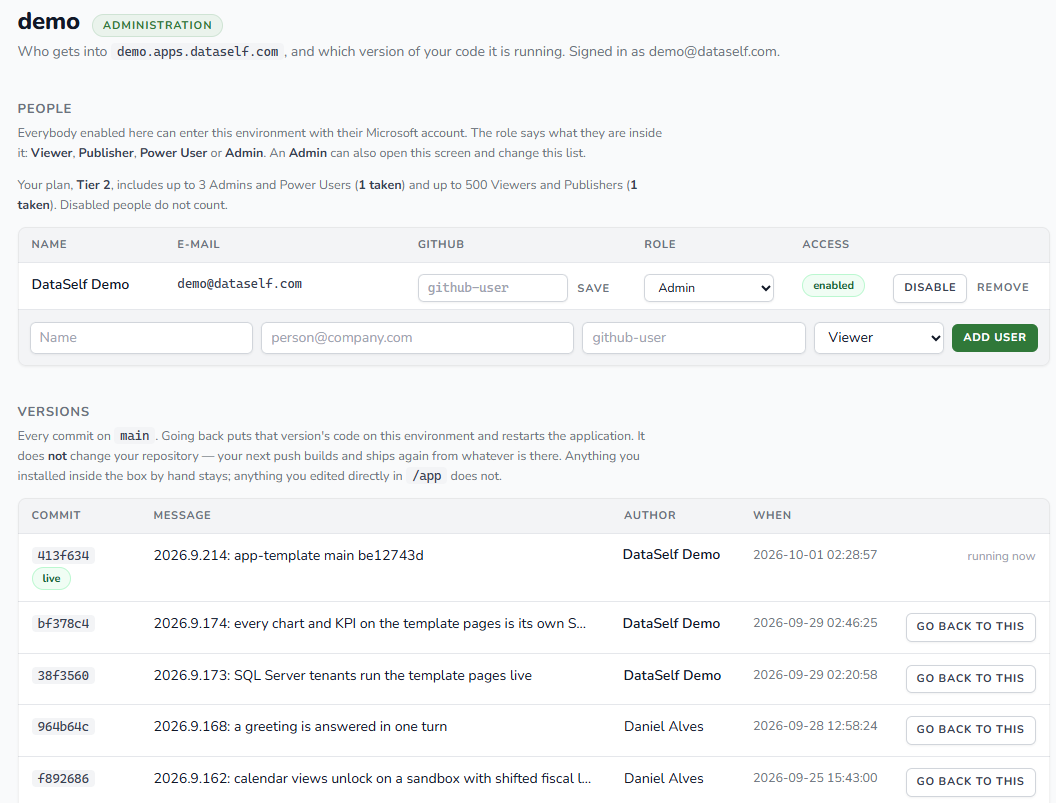
People
Enabled users can sign in with their Microsoft accounts. The Role determines their access within the environment: Viewer, Publisher, Power User, or Admin. Admins can manage this list.
The page shows your plan’s user allowances and how many places are taken. Disabled users do not count toward those allowances.
|
Field or control |
What it does |
|---|---|
|
Name / E-mail |
Identifies the user. |
|
GitHub |
Shows the user’s GitHub name, which can be edited and saved. |
|
Role |
Sets the user’s access level. |
|
Access |
Shows whether the user is enabled. |
|
Disable / Remove |
Disables access or removes the user from the list. |
|
Add User |
Adds a person using the details and role entered in the bottom row. |
Versions
DataSelf Now versions are kept in a GitHub repository. Soon, you will be able to use your own GitHub repositories for version control.
The Versions section lists commits from the main branch. Each entry shows its commit ID, message, author, and date. The live label identifies the version currently running.
Select Go back to this to run an earlier version. This restarts the application with that version’s code. It does not change the GitHub repository: a later push can deploy newer code again. Changes installed within the environment remain, but edits made directly in /app do not carry over.
Industry packages
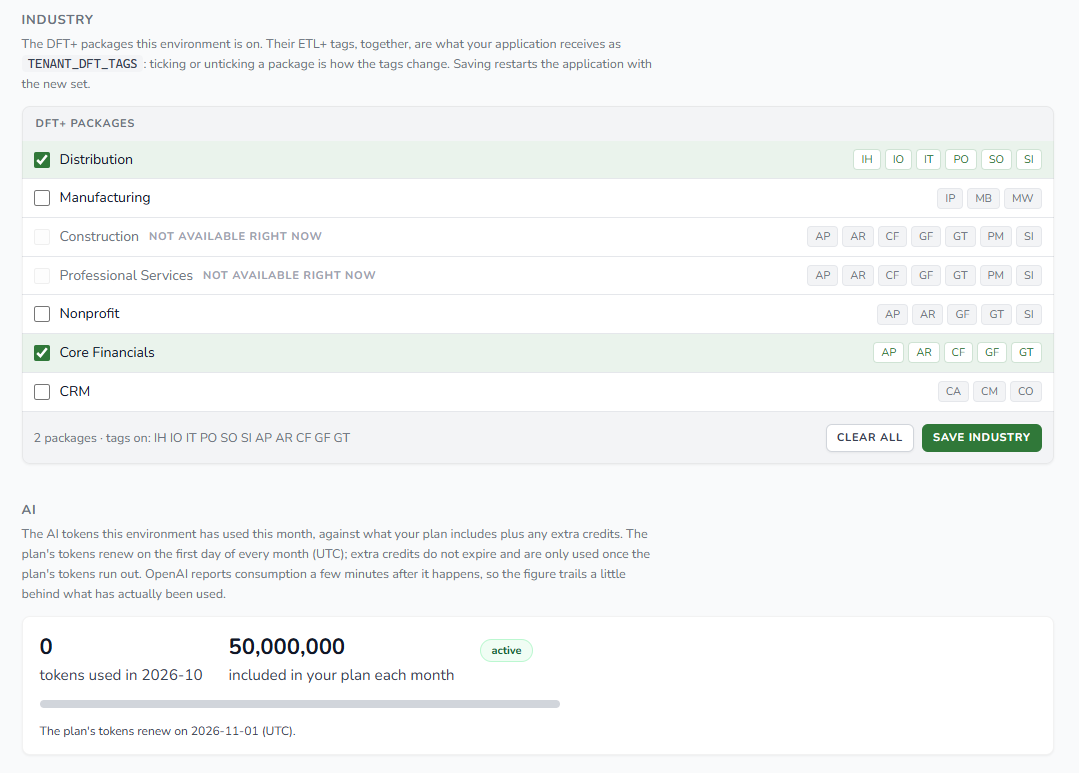
The Industry section shows the DFT+ packages enabled for this environment. Each package contributes ETL+ tags. Together, those tags determine what the application receives as TENANT_DFT_TAGS.
Select or clear a package to change the tag set. Packages marked Not available right now cannot be selected. The summary below the list shows the number of selected packages and their combined tags.
Select Save Industry to apply the selection. Saving restarts the application with the new tag set. Clear All clears the selections before you save.
AI usage
The AI section shows tokens used this month against the amount included in your plan, plus any extra credits. The usage bar provides a quick view of the remaining monthly allowance.
Plan tokens renew on the first day of each month in UTC. Extra credits do not expire and are used only after the plan’s monthly tokens run out. OpenAI usage reporting may lag by a few minutes, so the displayed token count can trail actual usage.