
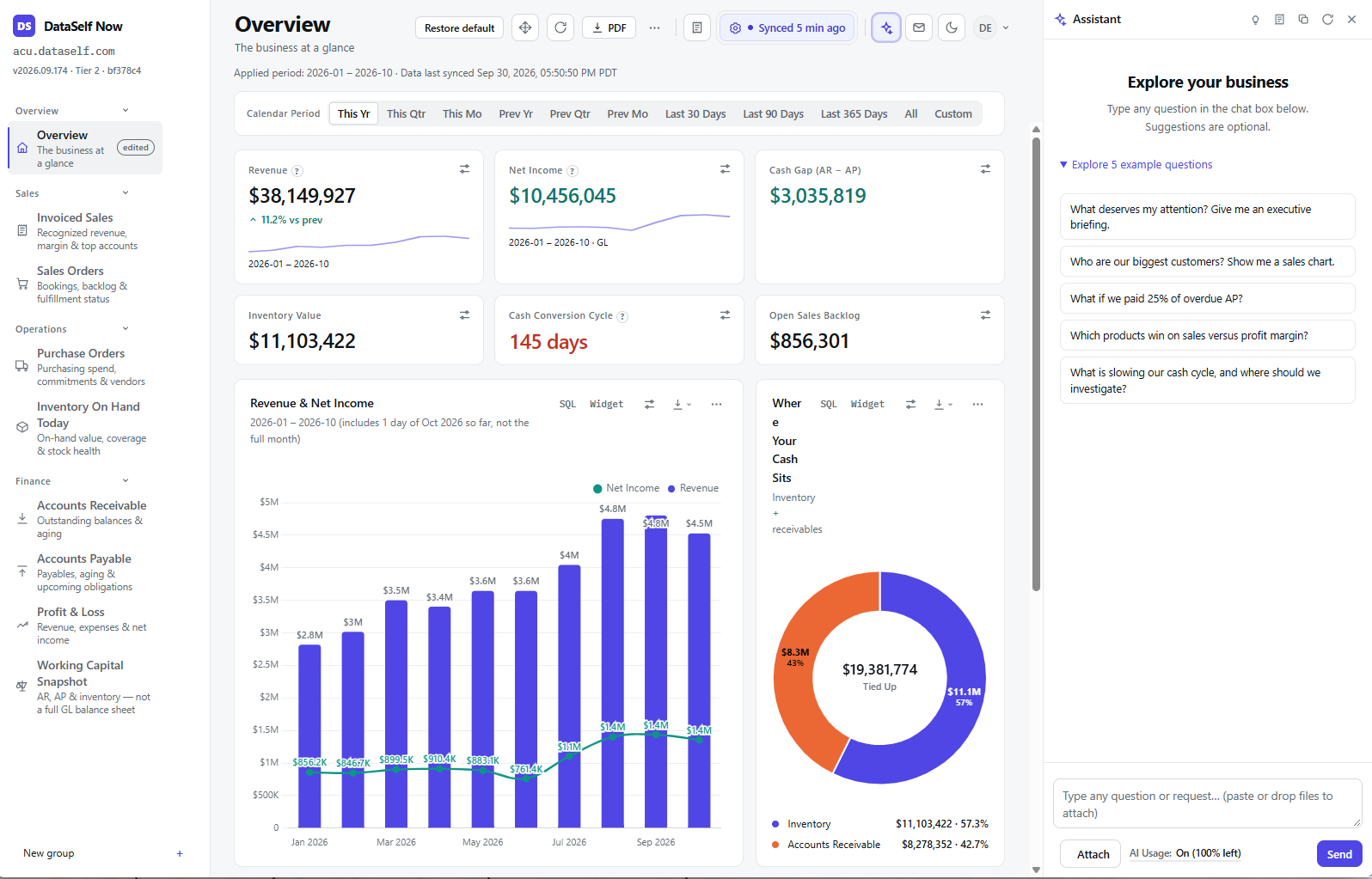
The DataSelf Now - Report Page has three areas: a navigation panel on the left, the selected report or dashboard in the center, and an optional AI Assistant panel on the right.
Left panel: Navigate reports and dashboards
At the top, the panel identifies your ERP site, DataSelf Now version, and subscription tier.
Below that, reports and dashboards are organized into groups such as Overview, Sales, Operations, and Finance. Expand a group and select a report or dashboard to open it in the center area. Select New group at the bottom of the panel to create another group.
Actions (top icons)

-
Recalculate this report from the data warehouse
-
Download the report to PDF
-
Switch between light and dark mode
Center area: View and work with a report
The center displays the report or dashboard selected on the left.
-
Title: Its title and short description appear at the top, followed by global filter applied to the report, and the data last synced.
-
Global filters: such as the calendar period, usually appear near the top of the report. Set them before reviewing the KPIs, insights, charts, and other widgets below.
-
Widgets:
-
The report can have a single report such as a table or graph, or multiple widgets.
-
Mouse over a widget title to enable the SQL and Widget features. They show and allow the editing of the SQL statement and widget features.
-
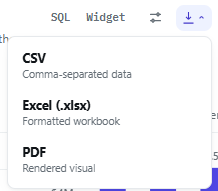
The Download icon allows export to CSV, Excel, and PDF.
-
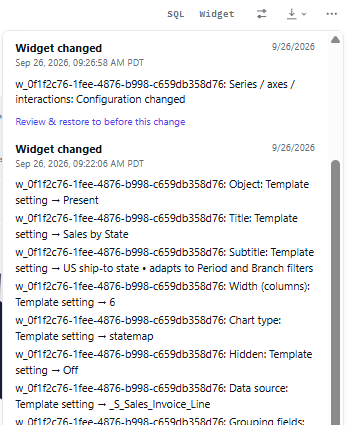
The the … widget icon for version control: to view and/or reverse it to prior versions.
-
Right panel: Ask the AI Assistant
The AI Assistant opens in a panel on the right and can be closed when you need more room for the report. You can type a question about your business data or ask for help with the selected report.
Controls at the top of the panel let you see:

-
Suggested questions,
-
View available AI actions,
-
Copy the chat,
-
Reset the conversation,
-
Close the panel.
At the bottom, you can enter a prompt, attach an image or other supported file, and see your remaining AI usage.
AI features and available actions depend on your plan, permissions, and your organization’s AI settings.