
Power BI allows users to subscribe to reports and receive them automatically by email at scheduled intervals.
How to Create a Report Subscription
-
Open the report you want to subscribe to.
-
In the top menu bar, click Subscribe.

-
Click Create a subscription.
-
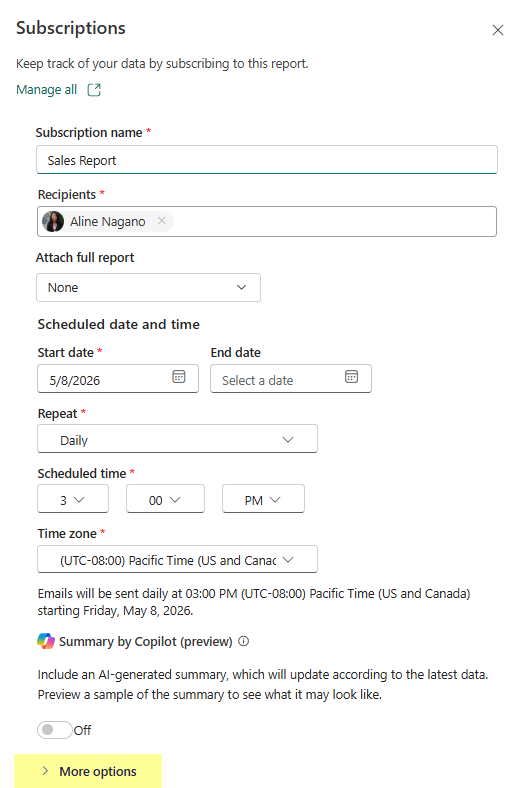
Enter the subscription details:
-
Subscription name
-
Recipients
-
-
Configure the delivery schedule:
-
Frequency
-
Date and time
-
Time zone
-
-
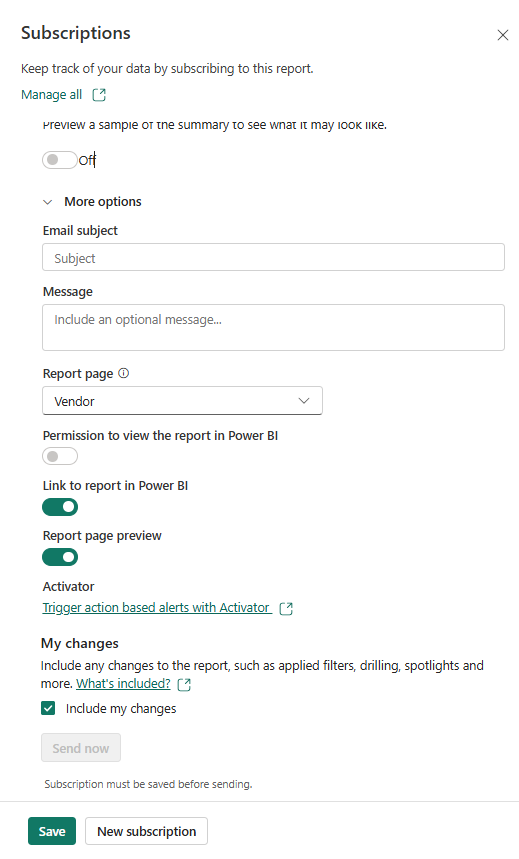
If you click More Options, additional settings are available to customize how the report is delivered.
-
Email subject
Define the subject line of the subscription email. -
Message
Add an optional message to include in the email. -
Report page
Select the specific report page you want to receive. -
Permission to view the report in Power BI
If enabled, recipients can open the full report in Power BI. -
Link to report in Power BI
Includes a direct link to the report in the email. -
Report page preview
Adds a preview image of the selected report page in the email. -
Activator
Allows triggering action-based alerts using Power BI Activator. -
My changes
Includes any personal changes applied to the report such as filters, drill-downs, or selections.
-
-
Click Save to create the subscription.