
Open Data Source → Tables & Views to inspect the tables in your local data warehouse and the views available for reporting.
Use the Tags menu at the top to filter both tables and views by reporting area or package.
Tables
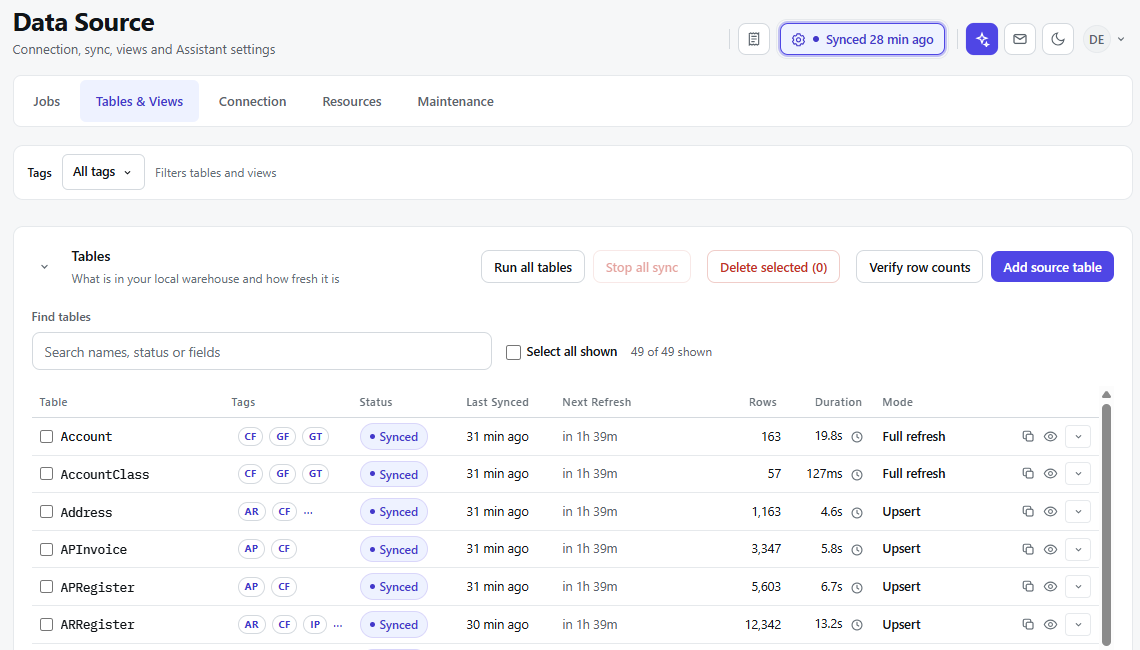
The Tables section shows which source tables are in your local warehouse and how recently they were refreshed.
Use Find tables to search by table name, status, or field. Each row shows the table’s tags, sync status, last sync, next refresh, row count, sync duration, and load mode. Load modes shown include Full refresh and Upsert.
The controls above the list let you:
-
Run all tables to start a load of all tables.
-
Stop all sync to stop a sync in progress.
-
Verify row counts to run a row count check.
-
Add source table to add another table from the connected source.
-
Select tables and choose Delete selected to remove them from the local warehouse.
Use Select all shown to select the tables currently displayed by your search and tag filters. Open a table or use its row controls to inspect it further.
Table Matrix
The table matrix shows which source tables are in your local warehouse and how recently they were refreshed. Use Find tables to search by name, status, or field.
|
Column |
What it shows |
|---|---|
|
Table |
The source table’s name. Select it to inspect and change the table settings. 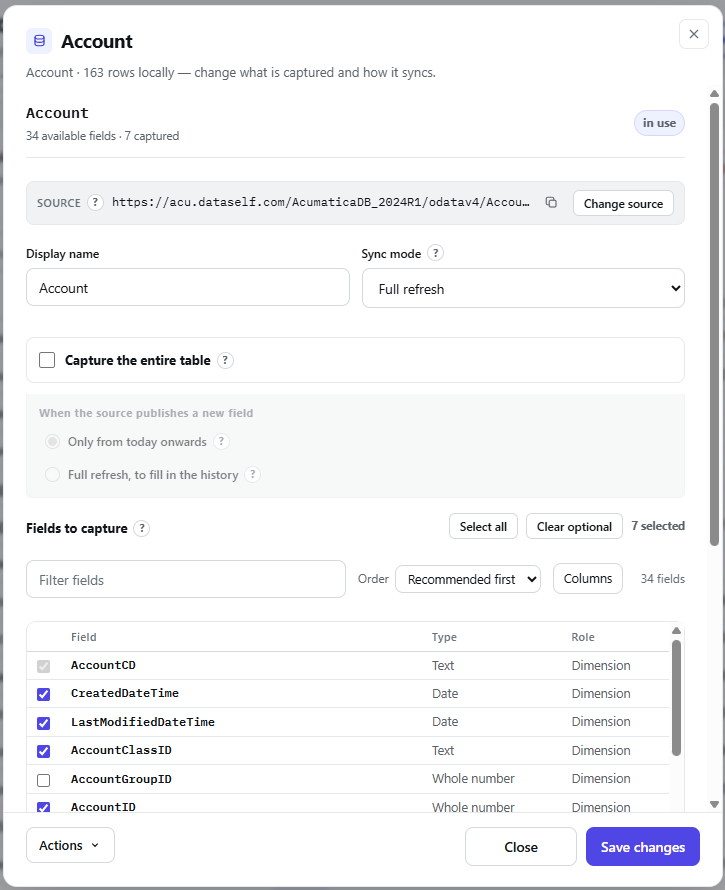
|
|
Tags |
The reporting areas or packages associated with the table. |
|
Status |
The result of the table’s latest sync, such as Synced. |
|
Last Synced |
How long ago the table was last synced. |
|
Next Refresh |
When its next scheduled refresh is due. |
|
Rows |
The number of rows in the local table. |
|
Duration |
How long the latest sync took. |
|
Mode |
The table’s load method, such as Full refresh or Upsert. |
Views
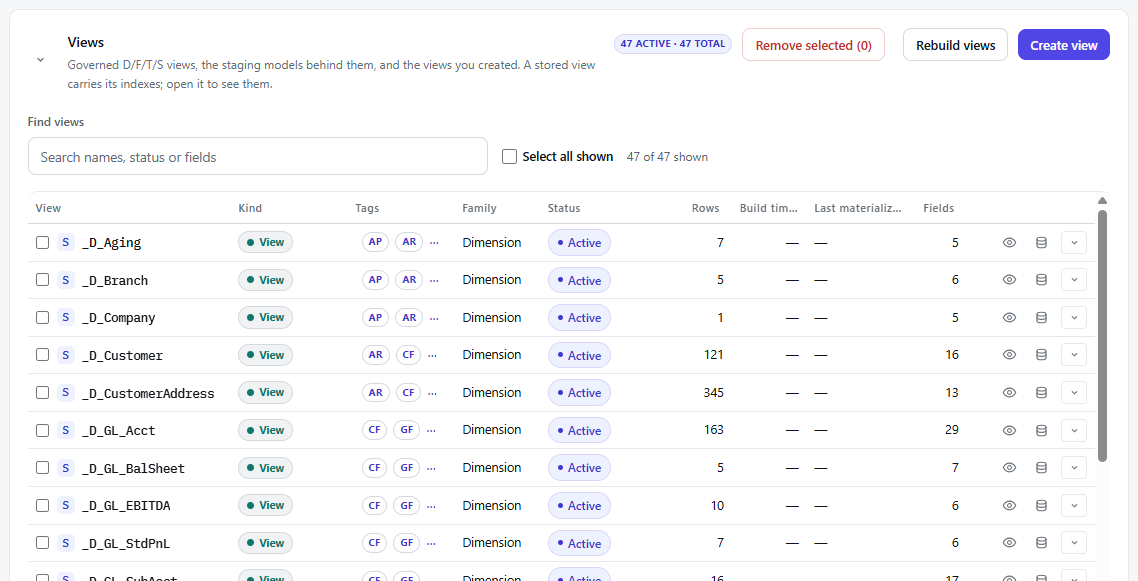
The Views section lists governed D/F/T/S views, their staging models, and views created in DataSelf Now. A stored view carries its indexes; open it to inspect them.
Use Find views to search by view name, status, or field. Each row shows the view’s kind, tags, family, status, row count, build time, last materialization time, and number of fields. The section header shows the number of active views and total views.
The controls above the list let you:
-
Create view to add a view.
-
Rebuild views to rebuild existing views.
-
Select views and choose Remove selected to remove them.
Use Select all shown to select only the views currently displayed by your search and tag filters.
|
Column |
What it shows |
|---|---|
|
View |
The view’s name; click it to view its details and SQL statement. 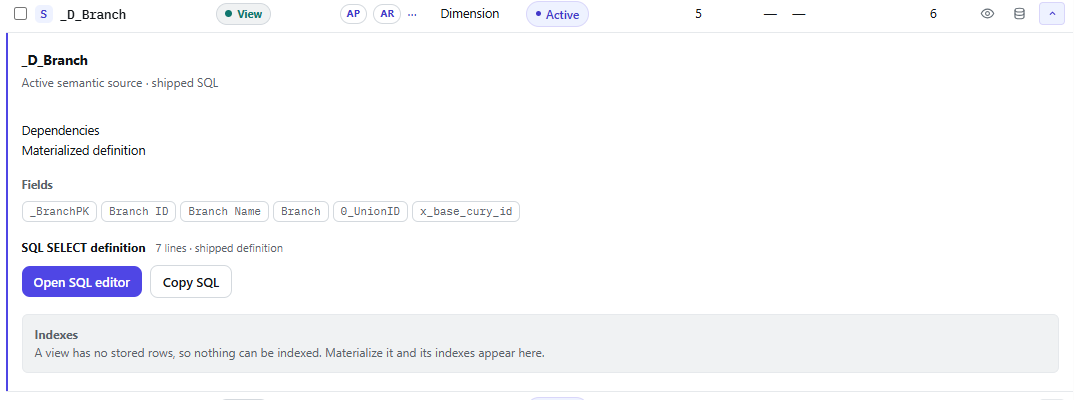
|
|
Kind |
The type of view, such as View. |
|
Tags |
The reporting areas or packages associated with the view. |
|
Family |
The view’s modeling category, such as Dimension. |
|
Status |
Whether the view is active. |
|
Rows |
The number of rows in the view. |
|
Build time |
How long its last build took, when available. |
|
Last materialized |
When its stored data was last generated, when applicable. |
|
Fields |
The number of fields in the view. |
The section header shows the number of active views and total views. Use Create view to add a view or Rebuild views to rebuild existing views. To remove views, select them and choose Remove selected. Select all shown selects the views currently displayed after search and tag filters are applied.