
This explains how to connect Anthropic’s Claude to your DataSelf MCP+ for Data Warehousing.
Add the DataSelf MCP+ Connector
-
Open http://Claude.ai in your browser.
-
Click on Customize in the left sidebar and select Connectors.
-
Add (+) → Browse connectors.
-
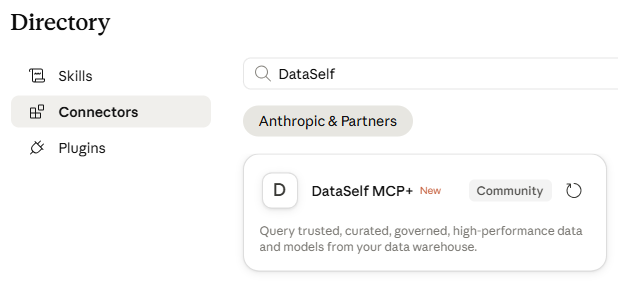
Search for and select: DataSelf MCP+
-
Click Connect.
-
Enable All Actions: Recommended: After adding the connector, Claude will ask how much access to grant. To allow full query capability, you need to enable all actions. Find the newly added Dataself MCP+ Data warehouse DS DW connector in your integrations list. Click it to open its settings and look for the Permissions or Actions section.
-
Select Always allow (or the equivalent option that grants full tool access). This allows Claude to list tables, run queries, and return results from your SQL Server.
-
Start Asking Questions
Open a new chat in Claude. To ensure Claude uses DataSelf MCP+, include a reference such as DataSelf, MCP+, DS DW, or data warehouse in your prompt.
Start with broad exploratory questions, then drill into the results. For example:
-
“Show me total sales by month for the past 12 months.”
-
“How many active customers do we have by region?”
-
“What is the current inventory level by warehouse?”
-
“What tables are available in the DataSelf DW?”
-
“Compare this year’s sales with last year’s by product category.”
The first time Claude uses a DataSelf MCP+ tool in a new chat, it may ask for permission. Click Allow to proceed. You can expand the tool call to review the exact query executed.