
To add target objects, click here.
Target Objects
To explore and change target objects:
-
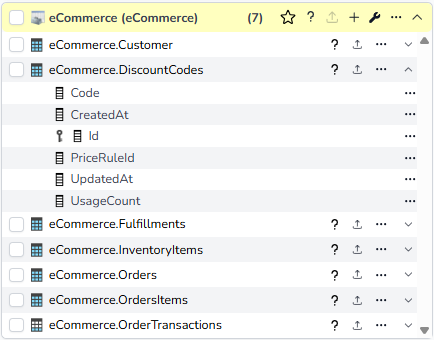
Click a source connector header to view its target objects.
-
Click the v icon on the right of a target object to view its columns and data types.
-
Mouse over the ? icon of a target object to view its metadata.
-
Click the Load Now icon on a target object to load its data now.
-
Click the More icon (…) on a target object to access additional features:
-
Delete Object
-
Design
-
Duplicate Objects
-
Preview Object
-
Rename Object
-
SQL Statement
-
Tags
-
Target Schema
-
Freeze
-
-
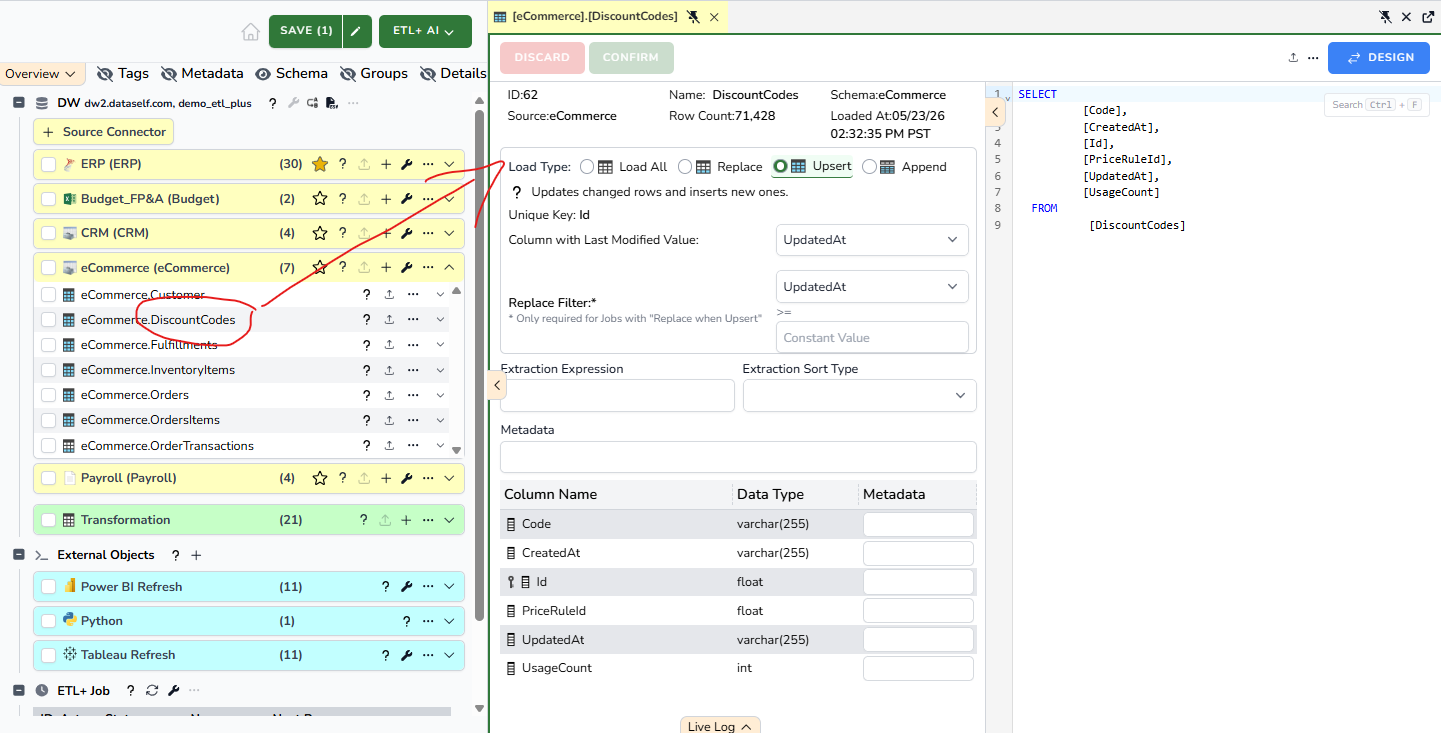
Click a target object name to access its control panel as a tab on the right area.
-
Clicking on target objects will replace the content of the control panel on the right area.
-
Use the tab pin to leave multiple target objects open. You can also drag pinned tabs to view multiple ones side by side, and/or one on top of each other.
-
Target Object Metadata
-
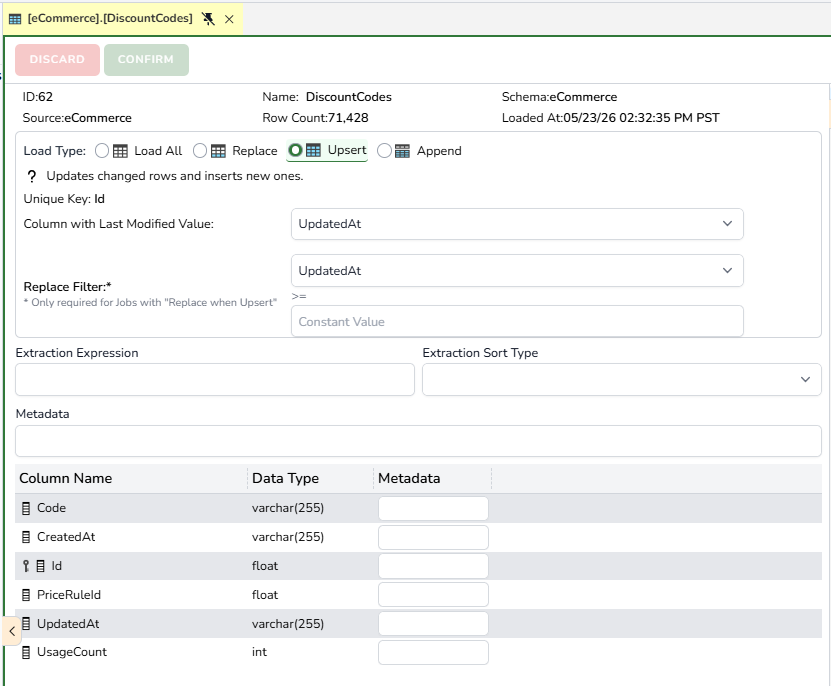
The top section shows name, schema, and other variables.
-
The next section controls the Load Type:
-
Load All: Mirrors all source rows each run.
-
Replace: Mirrors source rows based on the Replace criteria.
-
Upsert: Updates changed source rows and inserts new ones.
-
Append: Append source rows.
-
-
The bottom section shows columns and their data types.
-
Click the Design button (top right) to edit the Column Metadata. More details below.
Target Object Extract SQL
-
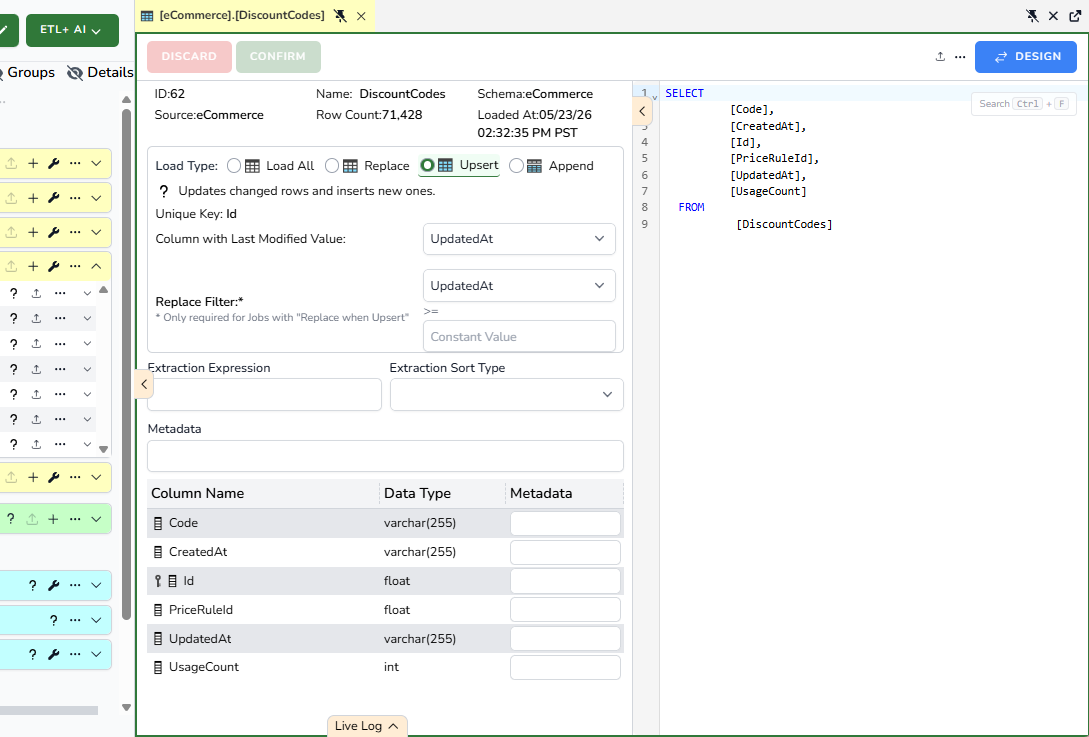
The right side provides the Extract SQL panel.
-
When adding a target object, ETL+ will automatically write the Extract SQL mapping all available source columns.
-
The SQL follows the source SQL syntax. For instance, T-SQL for MS SQL, and MySQL dialect for MySQL. Keep in mind that some sources provide little to no SQL transformations during the extraction.
-
One can edit the SQL Extract as needed.
Design Target Object
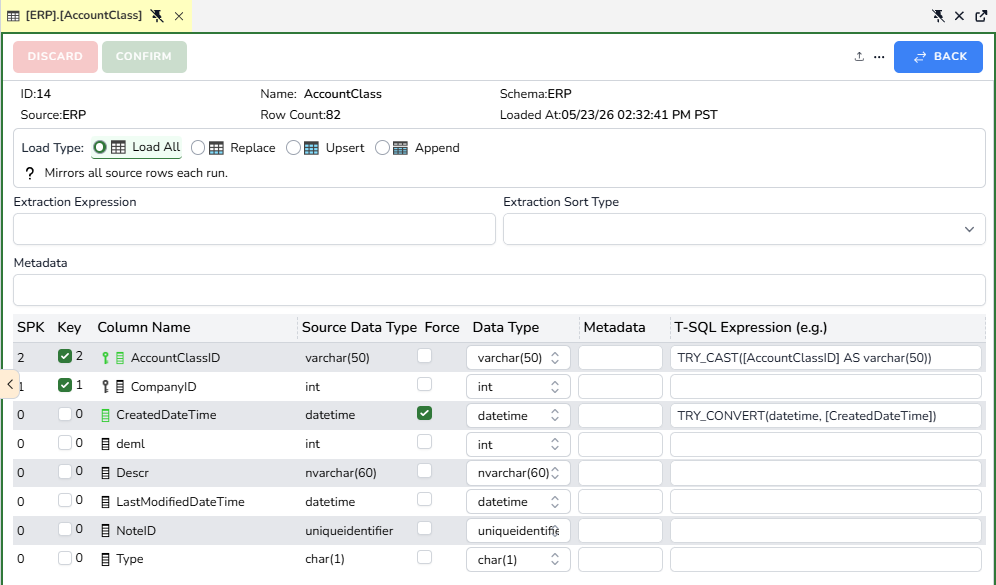
The Design button on the top right of the tab allows users to review and change several features of a target object:
-
SPK (Source Primary Key, if available): Shows the source columns and their order in the source’s PK.
-
Key+: the list and order of columns to define the index for sort data extractions, if applicable.
-
Source column name.
-
Source Data Type.
-
Force: This forces the load of a source data column into a varchar(max) column. This is helpful in some SQL failures when loading data. For instance, a SQL datetime column only accepts certain date ranges, loading the source into a varchar(max) will import all values.
-
Dw Data Type: Allows users to change the data warehouse target data type. When the user changes the target dw data type, ETL+ will write/suggest a T-SQL Expression when needed.
-
Metadata: Users can write a description for each column for documentation purposes.
-
T-SQL Expression: Users can customize the T-SQL to apply transformations at the column level during the extraction process.