
Visit here on how to add source connectors to your ETL+.
Adding Target Objects / Mirroring Source Objects
To add a source object (like a table or view) to your data warehouse:
-
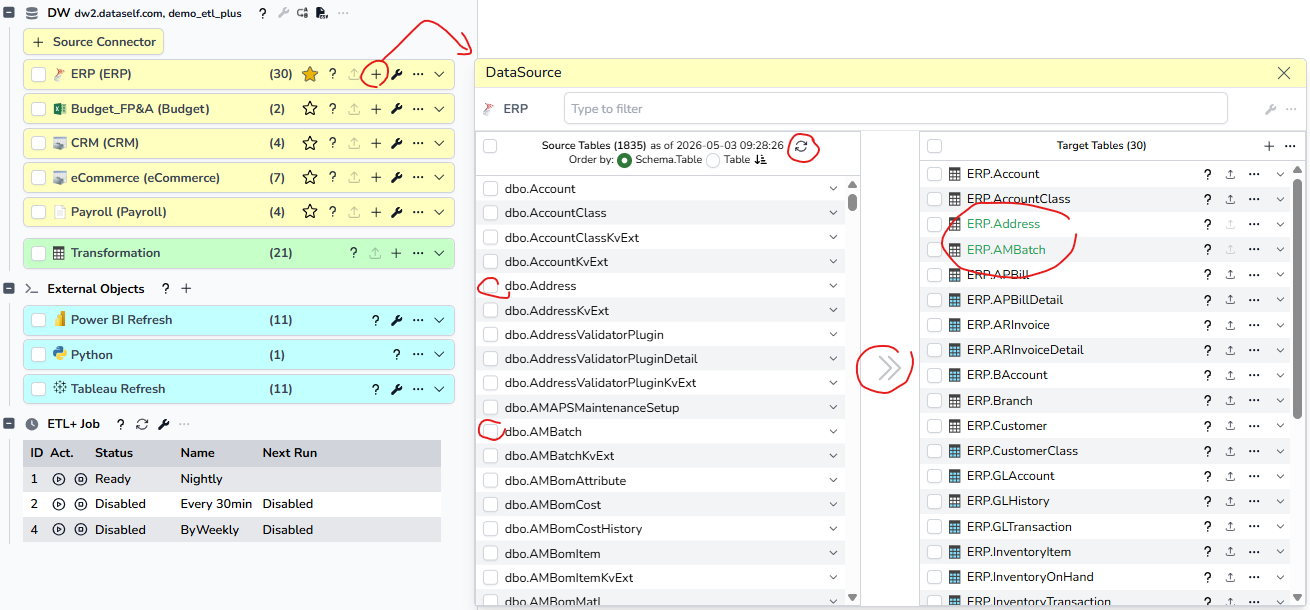
Click the + icon on the source header.
-
The Data Source panel opens. IMPORTANT:
-
If the left panel of the panel is blank: Click the Refresh icon to load the available source objects. Some sources might take a long time to render the available source objects.
-
You’ll need to click Refresh when the source object metadata changes (new or modified source objects).
-
-
Use the scroll bar on the left panel or use the search box to find the desired source objects and then check their checkboxes.
-
Click >> to map/add them to your Target Objects (right panel).
-
The image above shows a couple of checked source objects that were added to the Target Tables (they show in green fonts on the right panel).
-
Click the Save button on the top left to execute the change.
Source Connector Headers
Expand your DW entry to view the list your mapped source connectors. The following is an example where many target objects have already been added to each source connector. Source connectors show as yellow boxes.
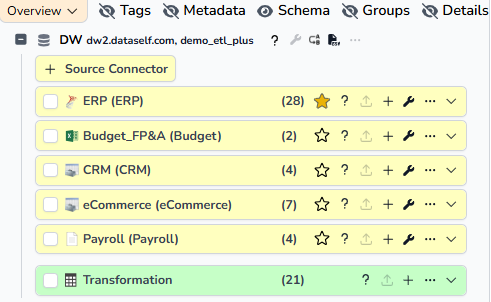
Each source connector header shows:
-
Checkbox: Check this box to select all objects from this source. More is explained in sections below.
-
Source Type icon: This is a quick way to view the source type (such as Excel or MS SQL).
-
Source Name: This is user-configurable in the source’s properties.
-
Dw Schema: When the Schema icon at the top of this panel is ON, then the source’s target SQL Schema shows between paranthesis. This is user-configurable in the source’s properties.
-
Number of target objects: It shows the number of target objects mapped from this source. The number is between paranthesis.
-
Favorites: Click the Favorites icon to put your prefered sources at the top of the list. Unclick them to return them to their alphabetical order.
-
Source Metadata Information (?): Mouse over this icon to view source detail properties.
-
Load Now: To load now objects from this table, one needs to select objects mapped to this source and click this icon.
-
Add Target Objects (+): Click this icon to review and/or add more target objects from this source.
-
Properties (wrench icon): Click this icon to review and/or change this source’s properties.
-
More (…): Click this icon to access additional source actions:
-
Duplicate Source
-
Delete Source
-
Change Group’s Schema
-
Collapse Columns Group
-
Delete Group
-
Expand Columns Group
-
Freeze Group
-
Tags
-
Unfreeze Group
-
-
Expand (v): Click the source header or this icon to view the mapped target objects from this source.