
Table of Contents
ETL+ Page’s Children Pages
Sample ETL Page
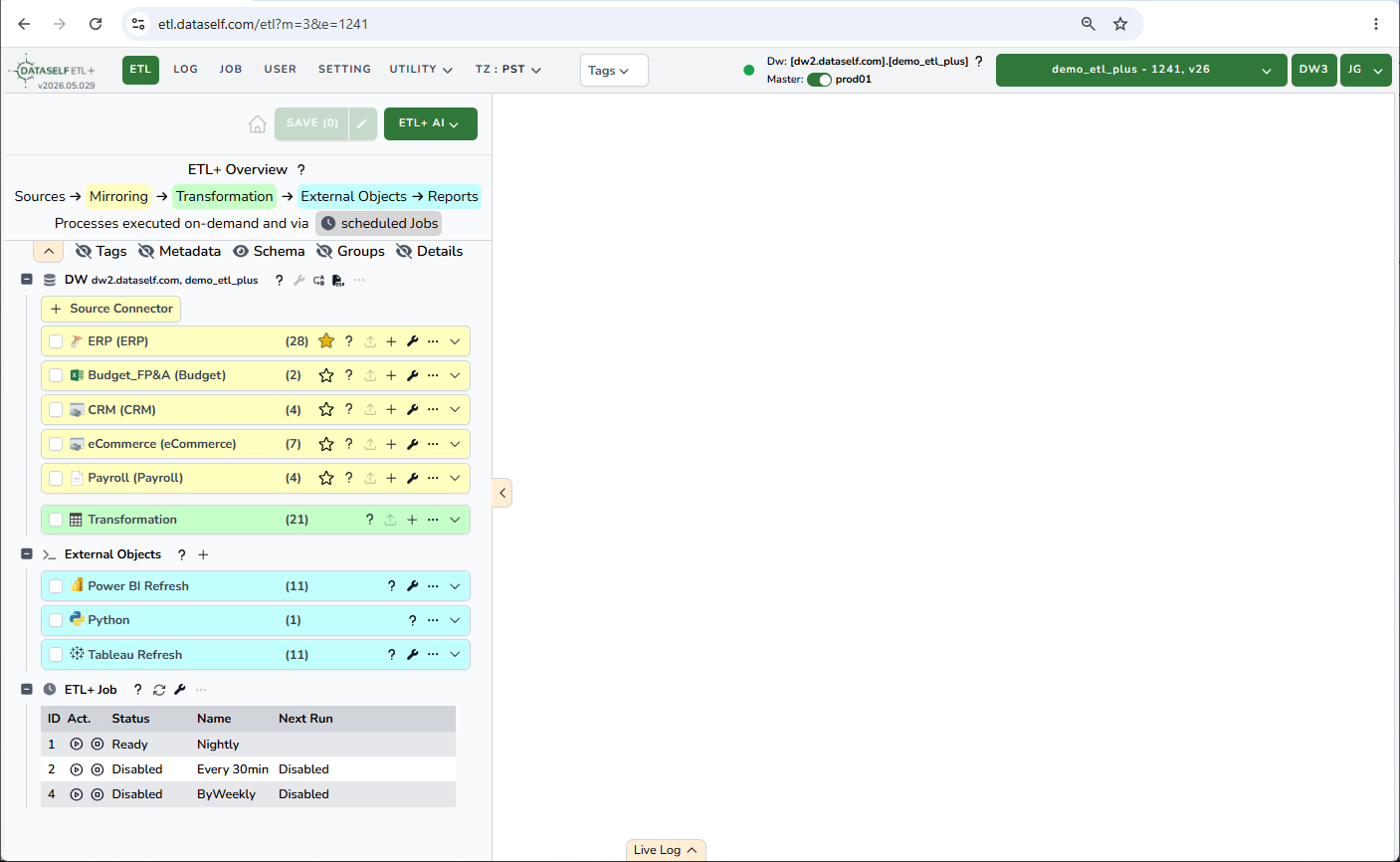
ETL Left Panel
Top Section
-
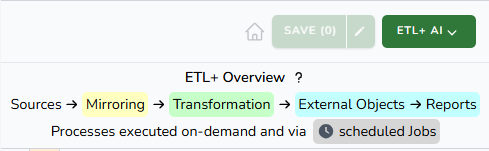
Home icon: click it to reset the layou.
-
Save: click it to save changes, the button shows a counter of unsaved changes.
-
ETL+ AI: click it to ask questions about your ETL metadata and desired changes.
-
ETL+ Overview: a brief explanations of the ETL core steps and their color theme.
-
Click the ^ tab to collapse this panel.
-
Main Section
-
Icons to view/hide features:

-
Tags
-
Metadata
-
Schema
-
Groups
-
Details
-
DW (Data Warehouse)
-
DW Header
-
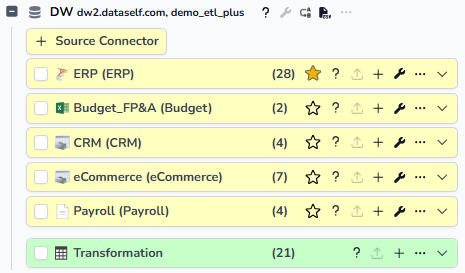
The data wahouse info: <data warehouse SQL instance>, <database name>
-
? - Mouse it over to view more details about the dw.
-
Search/Replace: use it to search and replace in the data warehouse.
-
Export to CSV: Click it to export the dw metadata to CSV.
-
-
+ Source Connector: Click it to add new sources for data mirroring.
-
-
Header shows Source Type icon, Source Name, Dw Schema, number of target objects, Favorites icon, target table metadata icon (?), Load Now icon, Add Target Objects icon (+), Properties icon (wrench), More icon (…), Expand icon (v).
-
-
Transformation
-
Header shows Label, number of target objects, data warehouse icon (?), Load Now icon, Add Target Objects icon (+), More icon (…), Expand icon (v).
-
External Objects
-
Header
-
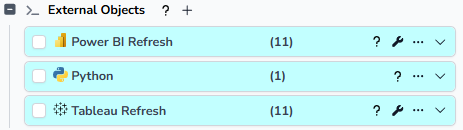
? - Mouse it over to view help.
-
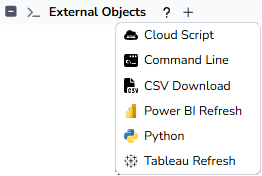
+ - Click it to add external objects
-
-
Cloud Script: Allows to run custom DataSelf cloud scripts. Contact us for options.
-
Command Line: Allows to run batch files on premise and private cloud VMs.
-
CSV Download: Allows the download of data warehouse objects to CSV on the master device.
-
Power BI Refresh: Use it to refresh Power BI semantic models manually and/or as part of ETL+ Jobs. All Power BI tenant/environments are supported.
-
Python: Use it to run Python scripts in your DataSelf Cloud entity.
-
Tableau Refresh: Use it to refresh Tableau data sources manually and/or as part of ETL+ Jobs. Tableau Cloud and Tableau Server supported.
ETL+ Job
-
Header
-
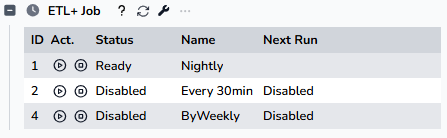
? - Mouse it over to view help.
-
Refresh icon: Click it to refresh the Job list and status.
-
Property icon: Click it to open the Job maintenance panel.
-
-
Job Summary List
-
Job ID
-
Action: Start and Stop icons.
-
Status
-
Name
-
Next Run: Shows the next schedule run, if applicable.
-
ETL Right Panel
Working on the ETL features will use the right panel as a canvas. Explore the sections in the ETL Left Panel to view how they show up on the ETL Right Panel.