Adding a New Data Source
-
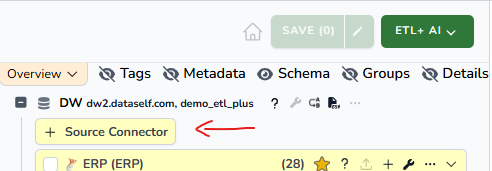
To add a new source to your ETL+ entity, click the + Source Connector button under your DW section.
-
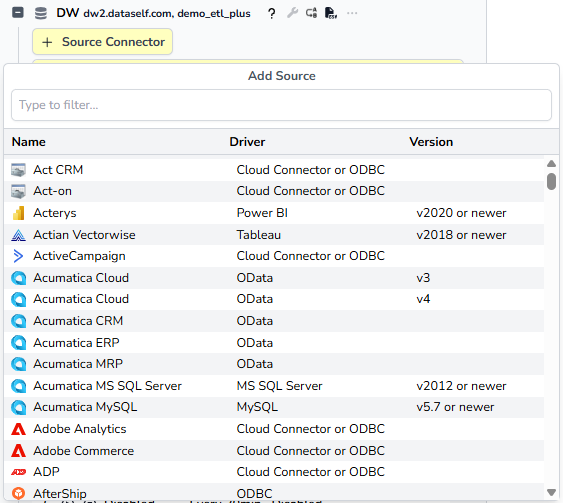
This will open the Add Source dialog. Find and select the source Name, Driver, and Version by scrolling the list or by searching.
-
When you select the Source, a new dialog will open requesting you to fill out the Source Properties. The following sections show popular properties by driver type.
Driver Type and Properties
Cloud Connector
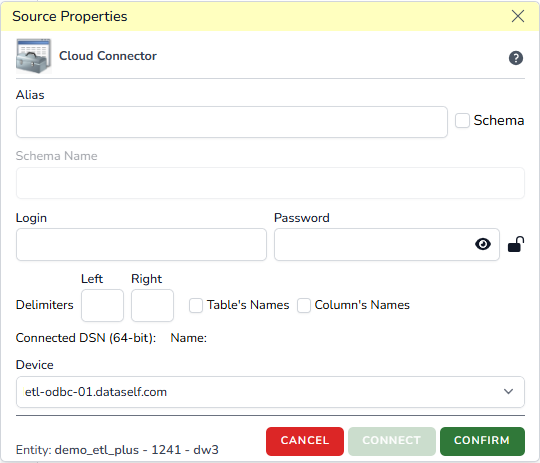
This is a DataSelf Cloud Connector Property page. Contact us for assistance:
-
Alias: Give it a name/alias.
-
Schema checkbox: Check this to load this source’s tables into a dedicated MS SQL schema.
-
Schema Name: When checking the box above, you can customize the Schema name on this box.
-
-
Login: Enter the username.
-
Password: Enter the password. Use the View icon to view/hide it. Click the lock icon to lock the password.
-
Delimiters: Leave these blank by default.
-
Device: Do not change this unless instructed by DataSelf.
GoogleSheets
Prepare Google Sheets with Google:
-
Grant ETL+ with rights to extract your Google Sheets:
-
Open your Google Sheets spreadsheet
-
Click Share
-
Enter
dsservice@ds-etlplus-api.iam.gserviceaccount.cominto Email. -
Select Editor on the dropdown list
-
Click Send.
-
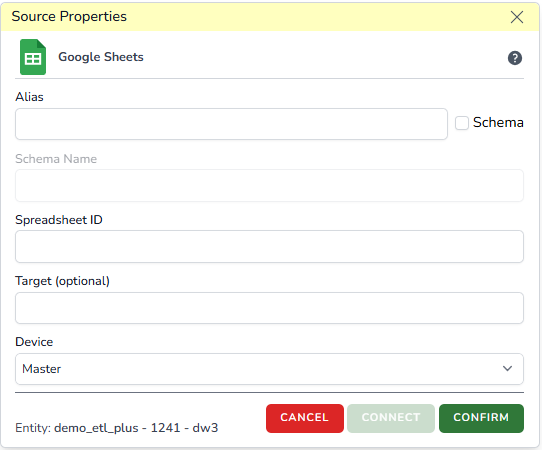
Then configure the source properties below:
-
Alias: Give it a name/alias.
-
Schema checkbox: Check this to load this source’s tables into a dedicated MS SQL schema.
-
Schema Name: When checking the box above, you can customize the Schema name on this box.
-
-
Spreadsheet ID: The GoogleSheets ID.
-
Target: Use this to set to a specific Google Sheets tab.
-
Device: This driver can run on any device connected to the internet.
MariaDB
-
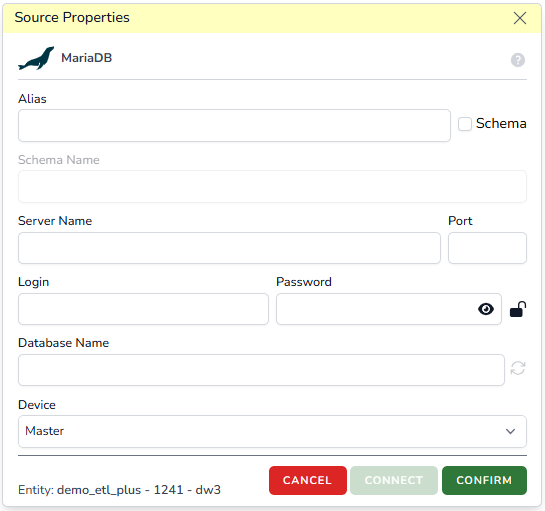
Alias: Give it a name/alias.
-
Schema checkbox: Check this to load this source’s tables into a dedicated MS SQL schema.
-
Schema Name: When checking the box above, you can customize the Schema name on this box.
-
-
Server Name: Server address to your database.
-
Port: Port number to access your database.
-
Login: Enter the username.
-
Password: Enter the password. Use the View icon to view/hide it. Click the lock icon to lock the password.
-
Database Name: Enter the desired database name.
-
Device: Set it to a Device with direct access to your database.
MS Access
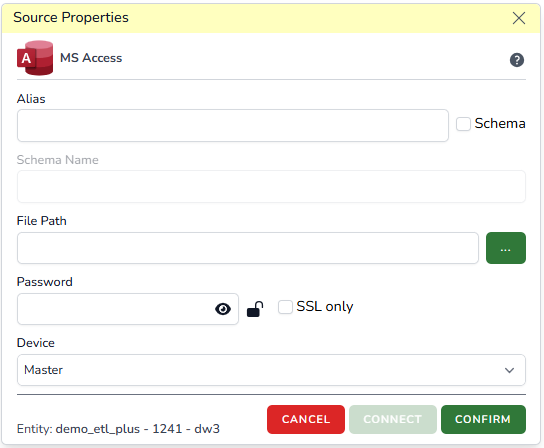
This driver requires ETL+ Desktop running on a computer with direct access to your MS Access database.
-
Alias: Give it a name/alias.
-
Schema checkbox: Check this to load this source’s tables into a dedicated MS SQL schema.
-
Schema Name: When checking the box above, you can customize the Schema name on this box.
-
-
File Path: Enter the file to your MS Access database file.
-
Password (if required): Enter the password. Use the View icon to view/hide it. Click the lock icon to lock the password.
-
Device: Set it to a Device with direct access to your database.
MS Excel
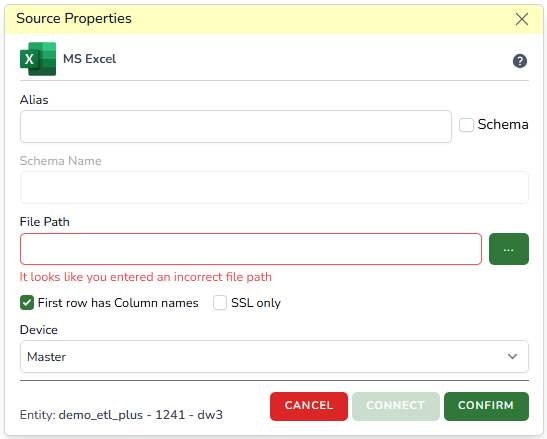
This driver requires ETL+ Desktop running on a computer with direct access to your MS Excel files.
-
Alias: Give it a name/alias.
-
Schema checkbox: Check this to load this source’s tables into a dedicated MS SQL schema.
-
Schema Name: When checking the box above, you can customize the Schema name on this box.
-
-
File Path: Enter the file to your MS Excel files.
-
First row has Column names: Check this box if your Excel tables have column headers.
-
Device: Set it to a Device with direct access to your database.
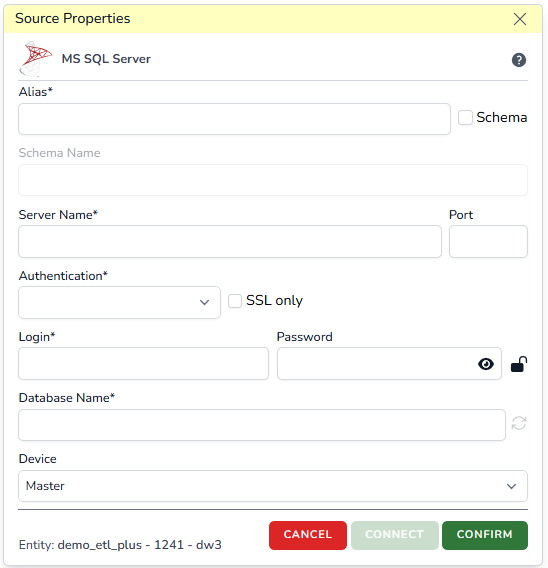
MS SQL Server
-
Alias: Give it a name/alias.
-
Schema checkbox: Check this to load this source’s tables into a dedicated MS SQL schema.
-
Schema Name: When checking the box above, you can customize the Schema name on this box.
-
-
Server Name: Server address to your database.
-
Port: Port number to access your database. Leave it blank when using the default 1433.
-
Authentication: Select the proper option:
-
Windows Authentication
-
SQL Server Authentication
-
Microsoft Entra MFA
-
Microsoft Entra Password
-
Microsoft Entra Integrated
-
Microsoft Entra Service Principal
-
Microsoft Entra Managed Identity
-
Microsoft Entra Default
-
-
Login: Enter the username.
-
Password: Enter the password. Use the View icon to view/hide it. Click the lock icon to lock the password.
-
Database Name: Enter the desired database name.
-
Device: Set it to a Device with direct access to your database.
MySQL
-
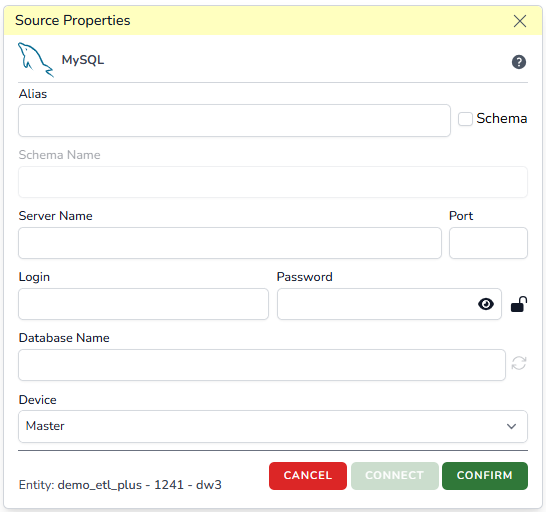
Alias: Give it a name/alias.
-
Schema checkbox: Check this to load this source’s tables into a dedicated MS SQL schema.
-
Schema Name: When checking the box above, you can customize the Schema name on this box.
-
-
Server Name: Server address to your database.
-
Port: Port number to access your database.
-
Login: Enter the username.
-
Password: Enter the password. Use the View icon to view/hide it. Click the lock icon to lock the password.
-
Database Name: Enter the desired database name.
-
Device: Set it to a Device with direct access to your database.
OData
-
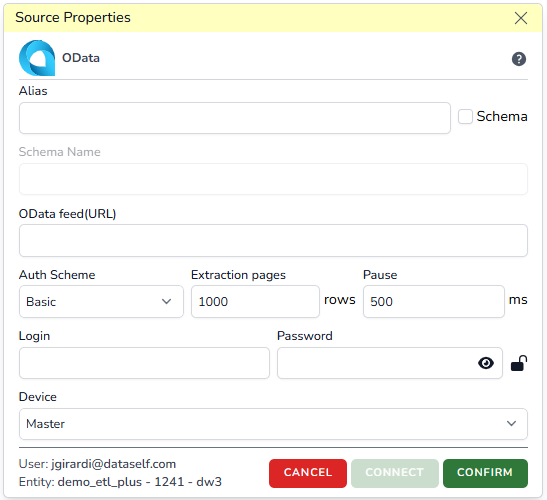
Alias: Give it a name/alias.
-
Schema checkbox: Check this to load this source’s tables into a dedicated MS SQL schema.
-
Schema Name: When checking the box above, you can customize the Schema name on this box.
-
-
OData feed (URL): Enter the URL to your OData feed.
-
Auth Scheme:
-
None
-
NTLM
-
Basic
-
Digest
-
Negotiate
-
OAuth 2.0
-
SharePointOnLine
-
-
Extraction page size: Sets the number of rows to extract on each extraction page. We recommend leaving the default value.
-
Pause: Wait time in ms between extraction pages. We recommend leaving the default value.
-
Login: Enter the username.
-
Password: Enter the password. Use the View icon to view/hide it. Click the lock icon to lock the password.
-
Device: Set it to a Device with direct access to your OData.
ODBC
This driver requires ETL+ Desktop running on a computer with direct access to your on-premise ODBC Driver(s).
-
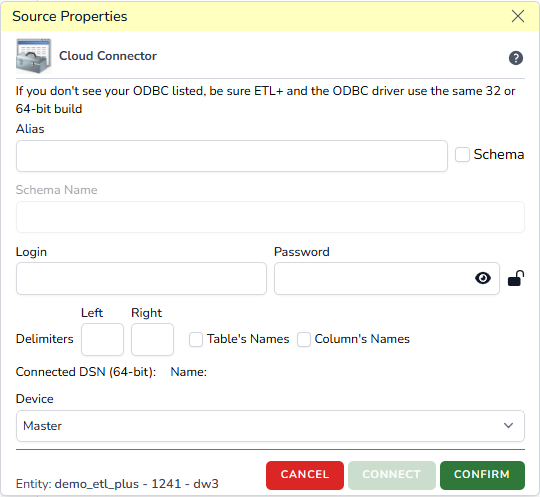
Alias: Give it a name/alias.
-
Schema checkbox: Check this to load this source’s tables into a dedicated MS SQL schema.
-
Schema Name: When checking the box above, you can customize the Schema name on this box.
-
-
Login: Enter the username.
-
Password: Enter the password. Use the View icon to view/hide it. Click the lock icon to lock the password.
-
Delimiters: Leave these blank by default.
-
Device: Do not change this unless instructed by DataSelf.
Oracle DB
-
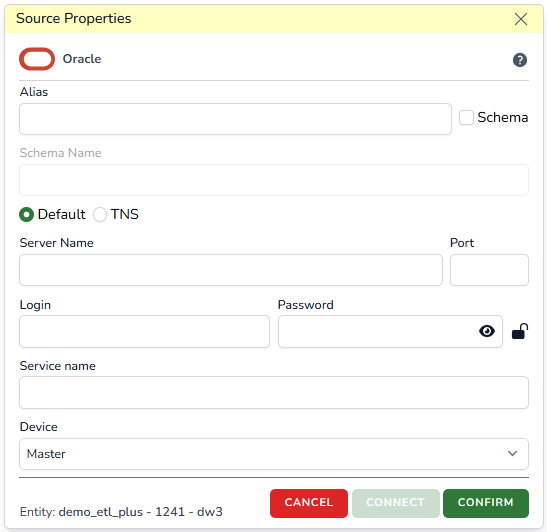
Alias: Give it a name/alias.
-
Schema checkbox: Check this to load this source’s tables into a dedicated MS SQL schema.
-
Schema Name: When checking the box above, you can customize the Schema name on this box.
-
-
Sets connection to Default or TNS.
-
Server Name: Server address to your database.
-
Port: Port number to access your database.
-
Login: Enter the username.
-
Password: Enter the password. Use the View icon to view/hide it. Click the lock icon to lock the password.
-
Service Name: Enter the desired service name.
-
Device: Set it to a Device with direct access to your database.
Power BI
PostgreSQL
-
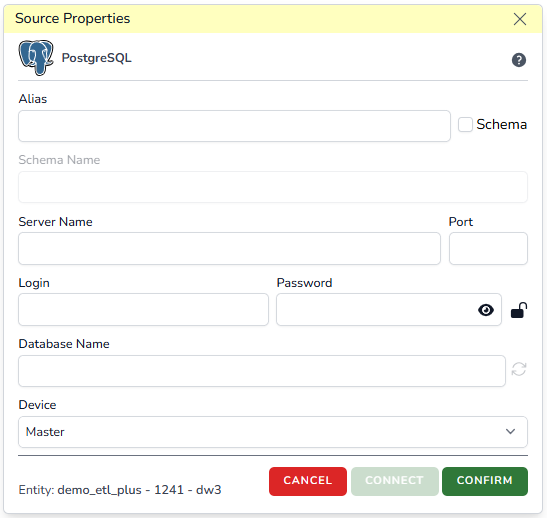
Alias: Give it a name/alias.
-
Schema checkbox: Check this to load this source’s tables into a dedicated MS SQL schema.
-
Schema Name: When checking the box above, you can customize the Schema name on this box.
-
-
Server Name: Server address to your database.
-
Port: Port number to access your database.
-
Login: Enter the username.
-
Password: Enter the password. Use the View icon to view/hide it. Click the lock icon to lock the password.
-
Database Name: Enter the desired database name.
-
Device: Set it to a Device with direct access to your database.
SQLite
This driver requires ETL+ Desktop running on a computer with direct access to your SQLite database(s).
-
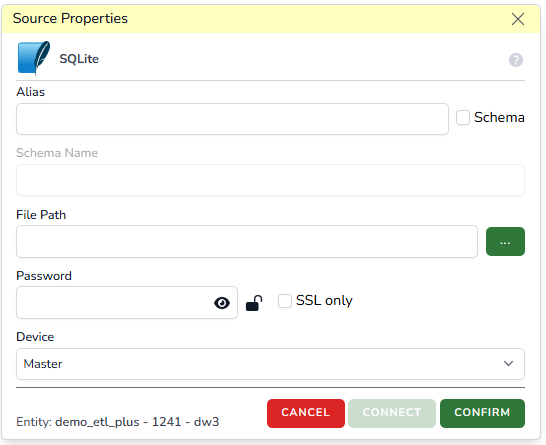
Alias: Give it a name/alias.
-
Schema checkbox: Check this to load this source’s tables into a dedicated MS SQL schema.
-
Schema Name: When checking the box above, you can customize the Schema name on this box.
-
-
File Path: Enter the file to your MS Access database file.
-
Password (if required): Enter the password. Use the View icon to view/hide it. Click the lock icon to lock the password.
-
Device: Set it to a Device with direct access to your database.
Tableau
Text / CSV
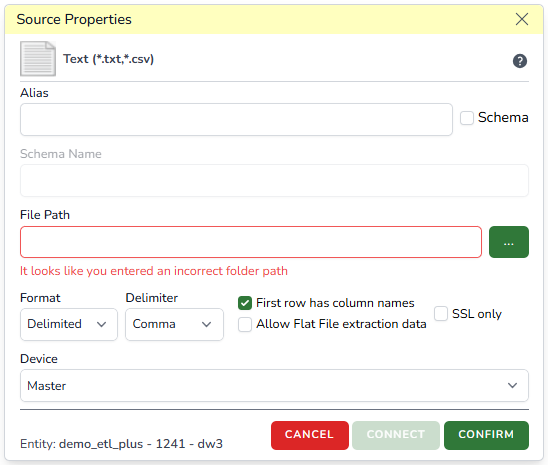
This driver requires ETL+ Desktop running on a computer with direct access to your CSV or text file(s).
-
Alias: Give it a name/alias.
-
Schema checkbox: Check this to load this source’s tables into a dedicated MS SQL schema.
-
Schema Name: When checking the box above, you can customize the Schema name on this box.
-
-
File Path: Enter the file to your tMS Access database file.
-
Format: Delimited.
-
Delimeter: Comma.
-
First row has the column names: Check this box if your Excel tables have column headers.
-
Allow Flat File extraction data: For testing, check this option in case of extraction failure.
-
Password (if required): Enter the password. Use the View icon to view/hide it. Click the lock icon to lock the password.
-
Device: Set it to a Device with direct access to your files.